 KastorFlow
Tested and updated November 6, 2026
NotebookLM flashcards: make them, then study them in Anki
Gemini Notebook makes good flashcards, but it can't export them. We made a Standard set from one 18-minute video and got 52 cards in about a minute. Then we looked for a way out: the set's menu had only Delete. To study those cards in Anki, you either rebuild them yourself or use a tool that reads the set for you. KastorFlow sends a set straight into an Anki deck, or saves it as an Anki-ready file.
Gemini Notebook is NotebookLM's new name. Flashcards work the same in both.
What happened when we made a set
On November 6, 2026 we opened a fresh notebook with one source, 3Blue1Brown's But what is a neural network?, about 18 minutes long. In Studio we clicked the pencil on Flashcards to see the settings before generating.
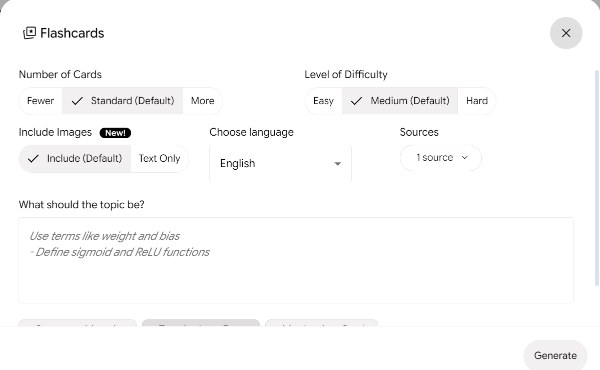
We kept the defaults: Standard, Medium, images included, English, one source, no topic. The set was ready in about a minute, with 52 cards.
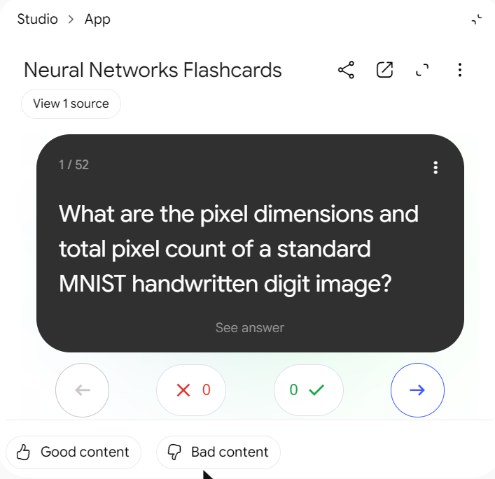
The card view has back and next arrows, a wrong counter and a right counter, and Good content and Bad content buttons for feedback. At the top are Share and Open in new tab. The set's three-dots menu in Studio has one item: Delete.
So there is no download and no export. An earlier version of this guide said you could download flashcards as a CSV file. In our test that option wasn't there, so we've taken it out. Audio Overviews do have a Download item; flashcards don't.
Settings to choose before you generate
If the cards are headed for Anki, get the settings right before you click Generate. Making a second set uses more of your Gemini Notebook allowance.
| Setting | Options | What to pick for Anki |
|---|---|---|
| Number of cards | Fewer, Standard, More | Standard gave 52 cards from 18 minutes. For a long course, make one set per chapter instead of one huge set. |
| Level of difficulty | Easy, Medium, Hard | Match how well you know the topic. Too easy and Anki will show you cards you never needed. |
| Include images | Include, Text only | Text only. Every way below moves the words, not the pictures, so a card that leans on an image won't make sense in Anki. |
| Language | A list of languages | The language you want to study in. |
| Sources | All, or the ones you tick | One chapter or one video at a time keeps each set focused. |
| Topic | A free text box | Name the terms you need, for example "define sigmoid and ReLU". |
Get cards into Anki without an extension
Without an export, there are two ways. Neither is quick, but both are free.
Copy the cards one by one. Open the set, read a card, flip it, and type or paste both sides into Anki. That's the same set you see in Studio, but 52 cards means 104 copies and pastes.
Ask the chat for a list, then import it. This gives you new cards written by the chat, not the Studio set, but it's much faster:
- In the notebook's chat, ask for something like: "Write 40 flashcards from these sources. One per line. Question, then a semicolon, then the answer. No numbering."
- Copy the answer into a plain text file and save it as
cards.txt. - In Anki on your computer, choose File › Import and pick the file.
- Set the field separator to Semicolon, the note type to Basic, and choose a deck. Match field 1 to Front and field 2 to Back. Click Import.
Before you import, skim the file. The chat writes in its own style, and you know best which questions are worth keeping.
What goes wrong, and the fix
- You can't find an export button. It isn't hidden. Gemini Notebook doesn't have one for flashcards.
- Cards land in the wrong field in Anki. A semicolon or comma inside a question splits it in two. Pick a separator the text doesn't use, or remove those characters before you import.
- A card refers to a picture that isn't there. The set was made with images included. Make it again with Text only.
- The chat's cards don't match the Studio set. They can't: the chat writes a new list each time. If you need the exact Studio cards, copy them by hand or use a tool that reads the set.
Send a set straight to Anki, with KastorFlow
KastorFlow reads the flashcard set from your notebook and adds each card to Anki for you. These are the same cards you saw in Studio.
Once, to connect Anki:
- In Anki, install the AnkiConnect add-on: Tools › Add-ons › Get Add-ons…, code 2055492159. Restart Anki.
- In KastorFlow, open Connections › Anki and type the Anki deck name. The deck must already exist in Anki.
- Copy the line KastorFlow shows into AnkiConnect's list of allowed sites (Tools › Add-ons › AnkiConnect › Config, the
webCorsOriginListlist). Restart Anki, then test the connection. It says "Anki is reachable." when it works.
Each time you want cards in Anki:
- In KastorFlow, open Organize › Artifacts and select one or more flashcard sets.
- Choose Send to › Send to Anki. KastorFlow says how many cards it added and how many were already there.
If you'd rather not install AnkiConnect, open the set's ⋯ menu in Artifacts and choose Download for Anki (.csv). You get a file with a front and a back column to import with File › Import. The same menu works on quizzes: the question goes on the front, and the right answer on the back with the other options listed under it.
Worth knowing before you send:
- Anki must be open on your computer while KastorFlow sends.
- Cards go in as Anki's Basic note type, Front and Back, with the tag
kastorflowso you can find them later. - Sending a set again adds only the cards the deck doesn't have yet. A card counts as "already there" when the deck has one with the same front.
- Only the text is sent. Cards with nothing on the front are left out.
- If something is off, the message says what: for example "Anki has no deck called …" or "Anki is blocking KastorFlow", with the step to fix it.
Send to Anki is 1 send a month on Free, with a free account. Pro and Pro+ have no monthly limit. On Pro you can also make it automatic: an automation with the trigger When a Studio artifact is generated and the step Send flashcards to Anki. How automations work · Compare plans
Send NotebookLM flashcards straight to Anki. Free to install, with 1 send a month free.
Add to ChromeQuestions
Can NotebookLM export flashcards to Anki?
No. Gemini Notebook, NotebookLM's new name, has no flashcard export at all: in our test on November 6, 2026 the set's menu had only Delete. KastorFlow, a Chrome extension, reads the set and sends it into an Anki deck, or saves it as an Anki-ready CSV file. Sending is once a month on Free, with no monthly limit on Pro.
Can I download NotebookLM flashcards?
Not from Gemini Notebook. The card view has Share and Open in new tab, and the set's menu has only Delete. Audio Overviews can be downloaded; flashcards can't.
Can NotebookLM make flashcards?
Yes. In Studio, click Flashcards. You can choose how many cards (Fewer, Standard or More), the difficulty (Easy, Medium or Hard), whether to include images, the language, which sources to use and a topic. A Standard set from one 18-minute video gave us 52 cards in about a minute. Which settings to pick
Why study NotebookLM flashcards in Anki?
Gemini Notebook counts your right and wrong answers while you study a set. Anki schedules every card over days and weeks with spaced repetition, so cards you miss come back sooner and cards you know come back later.
Does Anki need to be open?
Yes, for KastorFlow's Send to Anki: it sends cards through the AnkiConnect add-on, which runs inside Anki on your computer. A CSV file you import by hand doesn't need anything running until you open Anki to import it.
What happens if I send the same deck twice?
KastorFlow skips cards the Anki deck already has (the same front in the same deck) and adds only the new ones, then says how many it added and how many were already there.
Do the pictures on the cards go to Anki?
No. KastorFlow sends the text of each card. If a card leans on a picture, choose Text only in Gemini Notebook's flashcard settings before you generate a set for Anki.
Do flashcards work the same in NotebookLM and Gemini Notebook?
Yes. Google renamed NotebookLM to Gemini Notebook in July 2026, and flashcards work the same way. What changed with the rename
More on studying with Gemini Notebook: notes and flashcards from videos · Gemini Notebook for students · Audio Overviews as a podcast