 KastorFlow
Tested and updated November 6, 2026
Publish NotebookLM Audio Overviews as your own podcast
Gemini Notebook makes Audio Overviews you can play or download, but it has no podcast feed. We made a Brief from one video: it took about 4 minutes and came out 1 minute 39 seconds long. Its menu has Download, and nothing that publishes. To hear your overviews in a podcast app, you need a feed: upload the files to a podcast host yourself, or let KastorFlow publish them as episodes of your own show with an RSS link.
Gemini Notebook is NotebookLM's new name. Everything here works the same in both.
What happened when we tried it
On November 6, 2026 we used a fresh notebook with one source, an 18-minute YouTube explainer on neural networks. In Studio we opened the settings on Audio Overview. You choose a format (Deep Dive, Brief, Critique or Debate), a length (Short, Default or Long), a language, which sources to use, and what to focus on.
We picked Brief. It was ready in about 4 minutes and runs 1:39, so a Brief is a quick summary, not a full show. We didn't time the other formats.
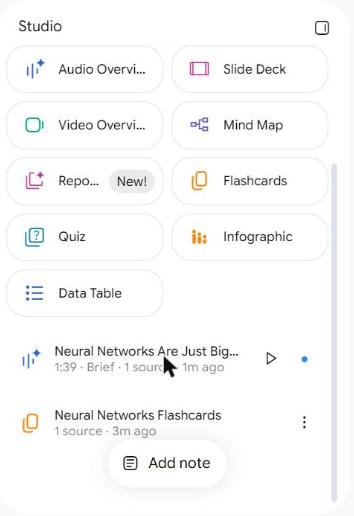
Then we opened its three-dots menu: Share, Rename, Download, View prompt and sources, Open in new tab and Delete.
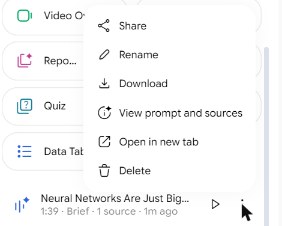
So you can keep the audio file, and you can share it from its menu. What you can't do is subscribe to your overviews in a podcast app, where new episodes show up on their own.
Which way fits what you want
| You want to | Simplest way | Public? |
|---|---|---|
| Listen to one overview on your phone | Download it and copy the file to your phone | No |
| Send one overview to a friend or colleague | Use Share in its menu, or send the downloaded file | Only to them |
| Hear every new overview in your podcast app | A feed: a podcast host, or KastorFlow | Yes, to anyone with the link |
| Run a show for a class, team or audience | A feed, listed in Apple Podcasts or Spotify | Yes |
A podcast feed (RSS) is a public web address. That's what makes it work in any app, and it's also why anything you publish can be found and kept by others.
Publish it yourself with a podcast host
Any podcast host turns uploaded audio into a feed. It takes a few minutes per episode:
- In Gemini Notebook, open the Audio Overview's menu and choose Download.
- If you want a different episode title, use Rename in the same menu first.
- Create a show on the host once: a name, a description, an owner email and a square cover picture. Apple and Spotify need a cover at least 1400 × 1400 pixels.
- Upload the file as a new episode, add a title and show notes, and publish.
- Copy the show's RSS link into your podcast app, or submit it to Apple Podcasts or Spotify for review.
What goes wrong:
- The host won't take the file. Check which audio formats your host accepts, and convert the file if it doesn't match.
- Each episode is a chore. Every new overview means another download, upload, title and notes. Fine for a few episodes, slow for a weekly show.
- The cover is refused. It must be square and large enough. A picture under 1400 × 1400 pixels is the usual reason.
- You don't own what's in it. An overview retells your sources. Publishing someone else's book or paid course in audio form is a rights question, not a technical one.
Publish with KastorFlow
KastorFlow hosts the audio and the feed for you, inside the dashboard you already use for your notebooks. Open Create & share › Podcast.
- Bring in your audio. Choose Refresh library: KastorFlow checks Gemini Notebook for the Audio Overviews you've made and lists them under All audio. You can also choose New episode to make one from a notebook (pick the sources, a format, a length, a language and what to focus on), or upload an MP3, WAV or M4A file up to 100 MB.
- Make a show. Choose + Show. Give it a name, and if you want it in Apple Podcasts, an owner email, up to three categories and a cover picture: square, 1400 × 1400 pixels or larger, up to 5 MB, JPG, PNG or WebP. Each show is its own feed, and you can have up to 12.
- Publish. Choose Publish on an episode. The publish window asks you to tick "I have the rights to publish this audio and what's in it." Chrome asks once for permission to upload. You can close the dashboard while it publishes.
- Share the feed. Publish the show, then copy its feed link from the show strip. Paste it into your podcast app, or add it in Apple Podcasts or Spotify and send it for review.
Honest notes:
- Only MP3 and M4A audio can be published. A WAV upload can sit in your library, but it won't go into a feed.
- Publishing uses published audio minutes. Making an episode, listening and downloading don't. Before you publish, the window shows how many minutes the episode adds and how many you have left.
- Unpublish takes an episode out of the feed and gives its minutes back. The audio stays in your library. Podcast apps and listeners may keep copies they already downloaded.
- Replace audio swaps an episode's file. Podcast apps keep it as the same episode and play the new audio.
- An episode can be in more than one show. Publishing puts it in that show's feed only.
- New episode asks Gemini Notebook to make the audio, so it takes as long as a Studio click and uses your Gemini Notebook allowance the same way.
To listen without publishing anything, use the same page as a player: add episodes to Up next, or turn on Save new episodes to Downloads to keep the files for offline listening.
On autopilot, the ready-made automation Audio to episode drafts an episode for your show each time an Audio Overview is generated. It can add the episode to a show, but it doesn't publish: an episode goes into a feed only when you choose Publish. How automations work
The Podcast page and your own feed are on Pro, with 1,000 published minutes, and Pro+, with 5,000. They aren't on Free. Compare plans
Your Audio Overviews as a podcast anyone can follow. Free to install, no account needed to start.
Add to ChromeQuestions
Can I make a podcast from NotebookLM?
Gemini Notebook, NotebookLM's new name, makes Audio Overviews and lets you download them, but it has no podcast feed. You can upload the files to a podcast host yourself, or use KastorFlow, a Chrome extension, which publishes them as episodes of your own show with an RSS link.
Can I download a NotebookLM Audio Overview?
Yes. In Studio, open the Audio Overview's three-dots menu and choose Download. The same menu has Share, Rename, View prompt and sources, Open in new tab and Delete.
Can I add NotebookLM Audio Overviews to a podcast app?
Yes, through a feed: upload the downloaded files to a podcast host, or publish them with KastorFlow, then add the show's RSS link to your podcast app or submit it to a directory.
How long does an Audio Overview take to make?
In our test, a Brief from one 18-minute video took about 4 minutes to make and came out 1 minute 39 seconds long. We didn't time the other formats.
Is the podcast feed private?
No. Published episodes are public to anyone with the feed link, and podcast apps may keep copies after you unpublish. To listen without publishing, use KastorFlow's Podcast page, which queues episodes in Up next and can save them to your Downloads folder.
Can an automation publish episodes for me?
Not yet. A KastorFlow automation can turn a new Audio Overview into an episode draft and add it to a show. Publishing and unpublishing stay with you, on the Podcast page.
Related: What Studio makes · Notes from YouTube videos · Flashcards to Anki · Automations · Plans