 KastorFlow
Tested and updated November 6, 2026
Summarize YouTube videos with NotebookLM: notes and flashcards
Add the video to a notebook, then ask for notes in the chat or use the buttons in Studio. We turned one 18-minute video into 52 flashcards in about a minute, and into a short Audio Overview in about four minutes. Everything is built from the video's transcript, so anything shown on screen but never said is missing. You can download the audio, but we found no way to download the flashcards. For a whole course, KastorFlow adds the playlist in one go, keeps the slides, and sends flashcards to Anki.
Gemini Notebook is NotebookLM's new name. Everything here works the same in both.
What we made from one video
On November 6, 2026 we used a fresh notebook with one source: 3Blue1Brown's But what is a neural network?, about 18 minutes long. Then we asked Studio for two things a student would want: flashcards to test ourselves, and audio to listen to later.
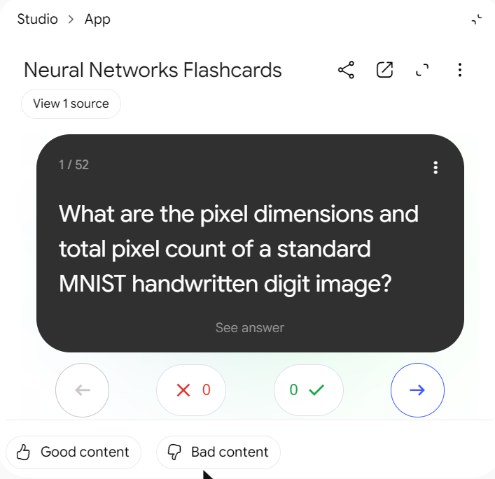
Flashcards. We left every option on its default and clicked Generate. About a minute later we had 52 cards. The first one asked for the pixel size and total pixel count of an MNIST digit image, a fact the narrator says out loud. The card view has back and next buttons, a counter for cards you got wrong and right, and Good content and Bad content buttons for feedback.
Audio Overview. We chose the Brief format. It took about four minutes to make and came out 1 minute 39 seconds long. That's a summary to replay before a test, not a lecture.
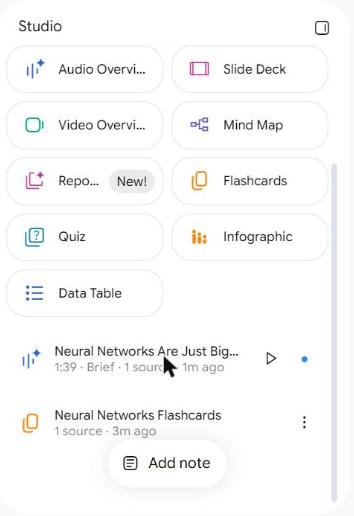
Then we looked for a way to take them with us. The audio's menu has Share, Rename, Download, View prompt and sources, Open in new tab and Delete, so you can save it as a file. The flashcard set's menu had only Delete. We found no download or export for flashcards in Gemini Notebook.
Which Studio button for which job
Studio showed nine buttons on the day we tested. They all work from the same transcript, so pick by what you'll do with the result.
| You want | Use | Good to know |
|---|---|---|
| Notes you can check against the video | The chat | Answers cite the transcript passage they came from |
| A summary or a study guide | Reports (marked New) | Built from what was said, not from the slides |
| To test yourself card by card | Flashcards | 52 cards from 18 minutes at Standard. No download. |
| To test yourself with questions | Quiz | Also in Studio. We didn't time it in this test. |
| The main ideas and how they connect | Mind Map | Useful after a long lecture with many topics |
| To review on a walk | Audio Overview | A Brief came out 1:39. You can download the file. |
| Something to show others | Slide Deck, Video Overview, Infographic, Data Table | Made from the words. The video's own pictures aren't used. |
Studio buttons and menus seen in Gemini Notebook on November 6, 2026. Google changes them often.
Make notes and flashcards in Gemini Notebook
- Add the video. Click Add sources, choose Websites, paste the link and click Insert. The video must be public and have captions.
- Ask for notes in the chat. Be specific about the shape you want. The prompts below work well on lectures.
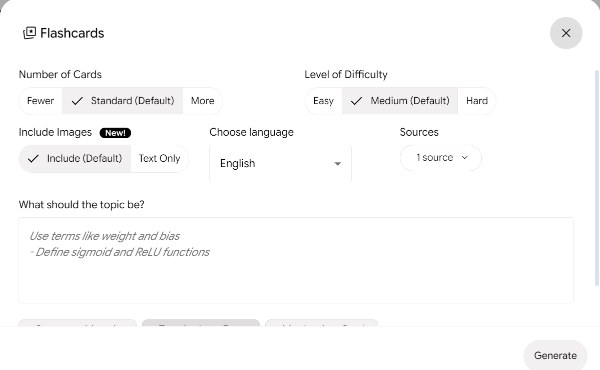
- Make flashcards. In Studio, open the Flashcards options. Choose the number of cards (Fewer, Standard or More), the level (Easy, Medium or Hard), whether to include images, the language and which sources to use. Type a topic in the box if you only want one part of the video. Then click Generate.
- Make audio. Audio Overview offers four formats: Deep Dive, Brief, Critique and Debate. Length can be Short, Default or Long, and there's a box to say what to focus on.
Prompts that work on videos:
- "Summarize this video in ten bullet points, most important first."
- "Write study notes: key terms with definitions, then the three arguments made."
- "What does the speaker assume I already know?"
- "List every step of the method shown, in order."
For a course, put all the lectures in one notebook. Then you can ask across them: "Where is backpropagation explained, and how does lecture 4 build on it?" Each answer cites the lecture it came from.
What goes wrong, and what to do
- The slides aren't in your notes. Gemini Notebook reads the transcript only. If the teacher points at a formula without reading it, your flashcards won't have it. Add the slides as a PDF, or capture the frames. What the transcript misses
- Names and terms come out wrong. Automatic captions have no punctuation and can mishear names. Check key terms in the cards against the video before you learn them.
- Timestamps are guesses. The transcript has no times in it. In an earlier test the chat gave a start time that was 23 minutes off. Find a quote in YouTube's own transcript panel instead.
- You can't take the flashcards with you. We found no download for them. Study them in Studio, or send them to Anki with KastorFlow (below).
- The audio isn't a podcast. You can download each Audio Overview as a file, but there is no podcast feed to subscribe to.
- Studio takes a while and uses your allowance. Our short Brief took four minutes. Every Studio output draws on your usage allowance, and Studio shows how much a generation will use before you start. Limits
A whole course, with KastorFlow
One video is easy by hand. A 40-lecture course is where the copying and the missing slides start to hurt. KastorFlow is a Chrome extension that helps at each step.
- All the lectures at once. Paste the playlist into the bar on KastorFlow's Collect page and choose each video as its own source, or the whole playlist as one source. Add a playlist
- The slides too. On the video's page, open KastorFlow's side panel and choose Capture video frames. The frames and the transcript go into the notebook as one PDF source, so your flashcards can include what was on the slides.
- Flashcards in Anki. In KastorFlow, open Organize → Artifacts, select one or more flashcard sets, then choose Send to → Send to Anki. Anki must be open on your computer with the AnkiConnect add-on. Set up Anki
- Your best prompts, one click away. Save the prompts you reuse and put one into the chat in a click. KastorFlow comes with 8 starter prompts.
- Audio as a podcast. Publish Audio Overviews to your own podcast feed, so they arrive in your podcast app. Podcast feed
| In KastorFlow | Free | Pro |
|---|---|---|
| Every video of a playlist, each as its own source | 3 runs a month | No monthly limit |
| A whole playlist as one source | 1 a month | 50 a month |
| Video frames with the transcript, as a PDF | 3 a month | No monthly limit |
| Send flashcards to Anki | 1 a month | No monthly limit |
| Saved prompts | 10 of your own | No limit |
| Podcast feed | Not included | 1,000 published minutes |
One notebook per course keeps the answers on that course. How to study with NotebookLM · Compare plans
A whole YouTube course in a notebook, slides included. Free to install, no account needed to start.
Add to ChromeQuestions
Can NotebookLM summarize YouTube videos?
Yes. Add the video as a source and ask for a summary, or use Reports in Studio. Gemini Notebook, NotebookLM's new name, works from the video's transcript and cites it.
How do I get flashcards from a YouTube video?
Add the video to a notebook and click Flashcards in Studio. In our test, one 18-minute video gave 52 cards in about a minute at the Standard setting. You can choose fewer or more cards, easy to hard, and a topic.
Can I download NotebookLM flashcards?
We found no way to. On November 6, 2026 the flashcard set's menu in Gemini Notebook had only Delete. KastorFlow, a Chrome extension, sends flashcard sets straight into an Anki deck: once a month free, with no monthly limit on Pro.
Can I download an Audio Overview of a video?
Yes. The Audio Overview's menu has Download, which saves the audio as a file. There is no podcast feed in Gemini Notebook itself.
Can I turn a YouTube playlist into notes?
Add the playlist's videos to one notebook, then ask across all of them. KastorFlow, a Chrome extension, adds a whole playlist at once, each video as a source or the whole playlist as one.
More on YouTube and Gemini Notebook: YouTube to Gemini Notebook · a whole playlist · a channel · can it watch videos? · when a video won't import · KastorFlow's YouTube tools