 KastorFlow
Tested and updated October 30, 2026
How to use NotebookLM for research
Gemini Notebook finds sources for you: type a topic and choose Fast Research for a list in seconds, or Deep Research for a report and its sources in a few minutes. On the same question, Fast Research took about 20 seconds and found 10 sources, and Deep Research took about 4 minutes and drew on 33. Review what it finds before you import it, keep one question per notebook, and check citations before you use a claim.
Gemini Notebook is NotebookLM's new name. Everything here works the same in both.
Finding sources in Gemini Notebook
- In the Sources panel, type your question in the search box.
- Choose where to look: the web or your Drive.
- Choose Fast Research or Deep Research, and press Enter.
- Open the results, untick what you don't want and click Import.
Deep Research tells you that you can leave while it works, and it shows its progress step by step.
Google says Deep Research is for users over 18, and a large import can stop part-way at your usage limit. From Google's help page Add or discover new sources for your notebook, read October 30, 2026.
Fast Research vs Deep Research: one question, both ways
On October 30, 2026 we asked both for peer-reviewed evidence on whether retrieval practice improves long-term learning.
| Fast Research | Deep Research | |
|---|---|---|
| Time | About 20 seconds | About 4 minutes |
| What you get | A list of sources with a one-line note on each | A report of roughly 4,000 words, with its sources |
| Sources | 10 listed, all ticked | 33 cited and 6 not cited; the top 20 ticked for import |
| Imports as | The sources you keep | The report and the sources you keep |
| Best for | A quick start, or adding to a notebook | A new topic you want mapped |
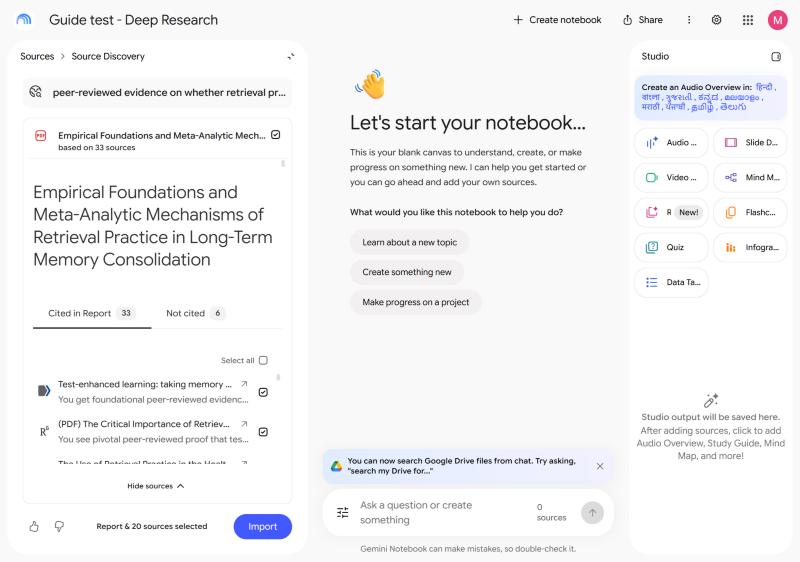
Read the list before you import. Two papers each appeared twice in Fast Research's 10 results, once from PubMed Central and once from the journal's site. So the list held 8 papers at most. Duplicates use up source slots and can make one study look like two.
One question on one day. We read the source lists and the opening of the report, but didn't check every claim in it, and you shouldn't take it on trust either.
Research papers and academic work
- Make one notebook per question or literature review, not per course or project.
- Add the papers as PDFs (up to 500,000 words or 200 MB each), from Google Drive, or by pasting a link to the PDF. Add the review articles first: they give the notebook the field's vocabulary.
- Ask across the papers, then check every claim against its citation before you use it. For example: "Compare the methods and sample sizes of these studies in a table", "Where do these papers disagree, and why?", "Which findings rest on a single study?"
- Save the answers you'll reuse as notes, and make a report or a data table in Studio when you need it in writing.
We tried this with two well-known machine learning papers, added as PDF links. Asked for a result that appears only in a table, the chat gave the right figures and separated the test score from the development score. Its citation opened the PDF with the table highlighted. A data table comparing the two papers came back with the right scores and a link to each source.
PDF links keep their web address as their name, so rename them. And keep unrelated material out: a notebook only knows what you gave it, but it will happily combine everything you gave it. In one test the chat added up figures from the wrong version of a course and gave a precise, wrong answer.
A gap in your reading also becomes a gap in its answers. KastorFlow's source audit shows which kinds of sources are missing, including academic ones, and suggests sources to fill them that you approve first (Pro+).
What the studies say about AI for research: AI for research statistics
A whole research notebook, with KastorFlow
- In KastorFlow's dashboard, open Create and choose Build research notebook.
- Type the topic. NotebookLM's own research engine finds the sources.
- Review what it found and untick anything you don't want.
- Import into a new notebook. NotebookLM's report becomes the briefing.
Free: 5 builds a month; Pro and Pro+: no monthly limit.
Going further
| Tool | What it does | Plan |
|---|---|---|
| Curated briefing | Choose where the research looks and which sources it keeps | Pro |
| Cited briefing | Reads the finished notebook's sources and adds a briefing with a citation for every claim | Pro |
| Thorough research | The deepest search KastorFlow offers | Pro+ |
| Saved preferred sites | Remembers the sites you trust so research looks there first | Pro+ |
| Audit and enrich | Scores every source, shows which kinds are missing and fills the gaps you approve | Pro+ |
| Notebook autopilot | Builds, audits and fills a notebook's gaps on a schedule | Pro+ |
Learning a new field with it
- Run Deep Research on the field and import the report with the sources you trust.
- Ask for a map: the main questions, the schools of thought, the terms to know.
- Audit it to see which kinds of sources are missing, and fill the gaps.
- Make flashcards and a quiz in Studio, and review them over the following days.
A research notebook on any topic, every source reviewed first. Free to install, no account needed to start.
Add to ChromeQuestions
Can NotebookLM find sources for me?
Yes. Gemini Notebook, NotebookLM's new name, searches the web or your Drive from a research question, and Deep Research adds a report with its sources. You choose what to import.
What is NotebookLM Deep Research?
A longer search that writes a report and lists the sources it cited and didn't, so you can import the ones you want. Google offers it to users over 18.
What's the difference between Fast Research and Deep Research?
Fast Research gives you a list of sources in seconds. Deep Research takes minutes and also writes a report. In our test Fast Research took about 20 seconds and found 10 sources. Deep Research took about 4 minutes, wrote roughly 4,000 words and drew on 33 sources. Our test
How do I build a research notebook on a topic in one go?
KastorFlow's Build research notebook, a Chrome extension tool, runs the research into a new notebook: you review every source before it's imported, and the report becomes the briefing. Free includes 5 builds a month.
Can I use NotebookLM for research papers?
Yes. Upload the papers as PDFs, add them from Google Drive or paste a link to the PDF, one notebook per question, then ask across them: compare methods, find where they disagree, list what rests on a single study. Answers cite the passage they came from, so check the citation before you use a claim. Research papers and academic work
Related: Audit a notebook · Keep sources up to date · Study with NotebookLM · AI for research: the numbers