 KastorFlow
Tested and updated November 6, 2026
Keep NotebookLM sources up to date
Gemini Notebook doesn't refresh website or YouTube sources. Each one is a copy of the page or transcript as it was on the day you added it. In our test notebook, the menu on those sources had only Move to, Remove source and Rename source: no refresh. To update one, you add the link again and then remove the old copy. KastorFlow's Refresh sources does that swap for every web link and Google Drive file in a notebook, and keeps the old copy until the new one is ready.
Gemini Notebook is NotebookLM's new name. Everything here works the same in both.
What we found when we looked for a refresh button
On November 6, 2026 we had a test notebook with eight sources: Wikipedia articles and two YouTube videos. We opened the menu (⋮) on each kind of source to see what we could do with it.
Website and YouTube sources showed the same three items: Move to, Remove source and Rename source. There was no refresh, no re-sync and no "check for changes".
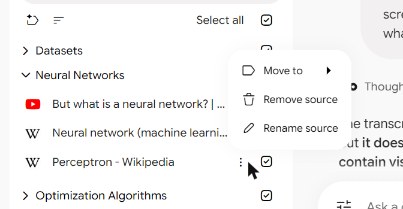
So a web source is a snapshot. If the page changes after you add it, your notebook keeps the old words. The chat will quote them and cite them as if they were current, and nothing tells you the page has moved on. That matters most for pages that change: product docs, prices, rules and policies, news stories that get updated, and wiki articles.
Which sources go stale, and how to update each
| Source | Updates by itself? | How to update it in Gemini Notebook |
|---|---|---|
| Web page | No | Add the link again, then remove the old copy |
| YouTube video | No | The same. Rarely needed: a posted video's words don't change unless its captions are edited |
| Google Docs and Slides from Drive | Google's help says they can be synced | Sync it, as Google's help describes. We didn't test this |
| Uploaded PDF or file | No | Upload the new version, then remove the old one |
| Copied text | No | Paste the new text as a new source, then remove the old one |
A useful rule: if you would check the page again before quoting it to someone, it needs refreshing. Published papers, books and finished talks almost never do.
Drive syncing from Google's help page Add or discover new sources for your notebook, read October 22, 2026. Source menus checked in Gemini Notebook on November 6, 2026.
Update a source by hand, in Gemini Notebook
Add the new copy first, and remove the old one last. That way a failed import never leaves you with nothing.
- Have the link ready. We didn't see a "copy link" item in the source's menu, so get the address from where you found it: your bookmarks, history or notes.
- Mark the old copy. Open its menu, choose Rename source and add "old" to the name. The new copy will arrive with the same title, so this saves guessing later.
- Add the link again. Click Add sources, choose Websites, paste the link and add it. This box takes YouTube links too.
- Check the new copy. Wait until it has loaded, open it, and make sure it holds the text you expect.
- Remove the old copy. Open its menu, choose Remove source, then Delete in the warning.
- Put it back in its label. If you group sources with labels, check where the new copy landed and use Move to if needed.
Having two copies for a minute is fine. Gemini Notebook doesn't stop duplicates: when we pasted the same article twice, it came in twice.
What goes wrong, and the fix
- The notebook is full. The new copy needs a free slot before the old one goes. A notebook holds 50 sources on the free plan, so if yours is full, remove something else first. Limits by plan
- Your Audio Overview still says the old thing. When you remove a source, Gemini Notebook warns: "Studio outputs you've generated with this content won't change." Reports, flashcards and audio made from the old page stay as they were. Make them again after the refresh.
- The page won't import any more. It may have moved, gone behind a paywall or started blocking imports. Google's small print says "Paid articles are not supported." Keep the old copy until you have a replacement.
- The new copy has a different name. In our test, a Wikipedia link that redirects came in under the page's current title. Search the list by the new name if you can't find it.
- You removed the old copy first. There's no undo. The warning says the source is "permanently removed" and "you will not be able to recover it." Add the link again; that's all you can do.
Refresh a whole notebook with KastorFlow
Doing the steps above for one page is fine. For a notebook of thirty web pages, KastorFlow's Refresh sources does it for you.
- Open KastorFlow's side panel and choose the notebook.
- Under Notebooks and sources, click Refresh sources ("Check this notebook's links and Drive files for changes"). In the dashboard, the same button is on Keep current.
- The result lands in Activity when it's done.
What it does, in the same safe order as the steps above:
- Each web link is imported again. The old copy is removed only after the new one is ready. If Gemini Notebook can't read the page now, the new copy is dropped and you're told: "Your existing copy is still in the notebook."
- If the same link is in the notebook twice, you end up with one fresh copy.
- For each Google Drive file, it asks Gemini Notebook whether the file is current and re-syncs the ones that aren't.
- KastorFlow tags on the old copy move to the new one.
Its limits, so you know what to expect:
- It skips YouTube videos, PDFs, copied text and sources that failed to import. A notebook with none of the right kind says: "Nothing to refresh in this notebook: it has no web links or Google Drive files."
- It imports every web link again, not only the ones that changed.
- It doesn't move Gemini Notebook's own labels, and it can't update Studio outputs. Check labels afterwards and make your audio or reports again.
- If you ask again within a few minutes, it reuses the check it just ran rather than starting a second one.
Refresh sources is on Pro and Pro+. Compare plans
On a schedule, with your approval
- In the dashboard, open Automate and choose New automation.
- Pick On a schedule as the trigger.
- Add the Refresh notebook sources action and choose the notebook and the sources.
When it runs, it checks each chosen link and sorts it: unchanged, changed, gone, or couldn't be checked. A page it can't reach is not treated as gone. Then it waits for you. A card called "Refresh sources that changed" appears in Automate, and "Nothing changes until you choose at least one update." Unanswered cards expire after 14 days. It keeps the old copy unless you approve removing it.
Scheduled refresh is on Pro and Pro+. Everything automations can do
Keeping up with a whole field
Refreshing keeps the sources you already have current. To bring in what's new:
- Import a YouTube channel's new videos on a schedule. YouTube channels
- Build a fresh research notebook on the topic. Research notebooks
- Let notebook autopilot build, audit and fill a notebook's gaps on a schedule (Pro+). The audit
Keep every notebook current without re-adding links by hand. Free to install, no account needed to start.
Add to ChromeQuestions
Does NotebookLM refresh sources automatically?
Not website or YouTube sources. Gemini Notebook, NotebookLM's new name, keeps the copy it made on the day you added them, and their menu has no refresh. Google's help says Google Drive files can be synced.
How do I update a website source in NotebookLM?
Add the link again, wait until the new copy has loaded, then remove the old one with Remove source. Adding first means a failed import doesn't leave you with nothing. KastorFlow, a Chrome extension, does this for every web link in a notebook.
Can I refresh a YouTube source in NotebookLM?
Not in Gemini Notebook: remove the video and add it again. KastorFlow's Refresh sources skips videos too. It's rarely needed, because a posted video's words don't change unless its captions are edited.
Do my Audio Overviews update when I replace a source?
No. When you remove a source, Gemini Notebook warns that Studio outputs you've generated with it won't change. Make them again from the new copy.
Can NotebookLM sources update on a schedule?
Not by themselves. A KastorFlow automation on Pro checks a notebook's links on a schedule you set, and waits for your approval before it replaces anything.
Related: Delete sources · Build a research notebook · YouTube channels · Automations · Limits by plan