 KastorFlow
Tested and updated November 6, 2026
Delete sources in NotebookLM
Open the source's menu (⋮), choose Remove source, then click Delete. Gemini Notebook removes one source at a time, and it's permanent: the warning says you won't be able to recover it. The tick boxes next to your sources don't delete anything. They only choose which sources the chat reads. In our test we found no way to delete several sources at once in Gemini Notebook itself. KastorFlow adds that, plus a duplicate finder, on its free plan.
Gemini Notebook is NotebookLM's new name. The steps are the same in both.
What happened when we deleted a source
On November 6, 2026 we had a test notebook where one Wikipedia article had come in twice. We had pasted the link twice by mistake, and Gemini Notebook added both copies without a warning. So we removed the extra one.
The source's menu had three items: Move to, Remove source and Rename source. Remove source opened this warning:
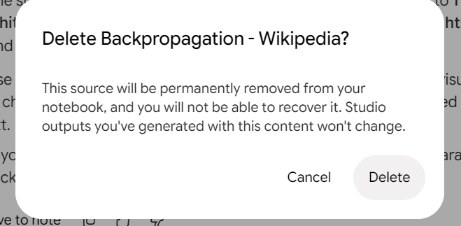
Two parts of that warning matter. "Permanently removed" means there's no bin to restore from. And "Studio outputs you've generated with this content won't change" means an Audio Overview, report or set of flashcards you made earlier still holds what it learned from that source. Deleting a source doesn't clean it out of what you've already made.
Then we looked for a way to remove several sources at once. Select all and the tick boxes beside each source and each label only choose what the chat uses. We found no bulk delete in any menu.
Untick, remove or delete: what each one does
| What you do | What happens | Can you undo it? |
|---|---|---|
| Untick a source | The chat ignores it. It stays in the notebook and still uses a slot | Yes, tick it again |
| Remove source | The source is gone and its slot is free | No. Add it again from the file or link |
| Remove a label | Only the group goes. Its sources move back to the unlabelled list | Nothing was deleted |
| Delete chat history | The chat is cleared. Your sources stay | Treat it as permanent |
| Delete the notebook | The notebook and its sources are gone | Treat it as permanent |
If you only want the chat to stop using a source for a while, untick it. If your notebook is full, unticking won't help: only removing frees a slot. A notebook holds 50 sources on the free plan. Limits by plan
Delete one source, in Gemini Notebook
- Open the notebook.
- In the Sources list, point to the source and click its menu (⋮). If your sources are grouped under labels, click the label's name to open it first.
- Choose Remove source.
- Check the name in the warning, then click Delete.
Sources are listed by title, A to Z, so two copies of the same page sit next to each other. If both came from the same link, it doesn't matter which one you remove.
Checked in Gemini Notebook on November 6, 2026.
What goes wrong, and the fix
- You removed the wrong source. It can't be restored. Add it again from the original file or link; it comes back as a new source. Keep your originals until you're sure.
- Old answers still show up in your Studio outputs. They were made before you deleted the source. Delete those outputs, or make them again.
- The notebook is still full after you unticked things. Unticked sources still count. Remove some instead.
- Cleaning up takes ages. Each source takes three clicks: the menu, Remove source, Delete. Thirty sources is ninety clicks. That's where a bulk tool helps.
- You have duplicates and don't know it. Gemini Notebook doesn't flag a link added twice. Sort through the list by eye, or use a duplicate finder (below).
Delete many sources at once, with KastorFlow
In one notebook
- Open KastorFlow's side panel, pick the notebook and choose Manage sources ("Rename, find duplicates, delete"). On the notebook's own page, KastorFlow's panel has the same button.
- Tick the sources you want gone, or All for every source shown. Type in Filter sources to narrow the list.
- Click Delete sources. KastorFlow asks first, names what will go and says "This can't be undone."
The panel also shows how many sources the notebook holds against Gemini Notebook's limit, and warns when you're close to it.
Duplicates first
Click Find duplicates. It ticks the extra copies that share an address, or a name and size, and leaves the first copy of each alone. Clear a box if you want to keep that copy too, then delete the rest. A page pasted twice, like our Wikipedia article, is exactly the case it looks for.
Across notebooks
- In the dashboard, open Organize → Sources. It lists the sources of every notebook. Search or filter, tick sources from any notebook and click Delete. The warning says they are removed "with their tags, and can't be restored."
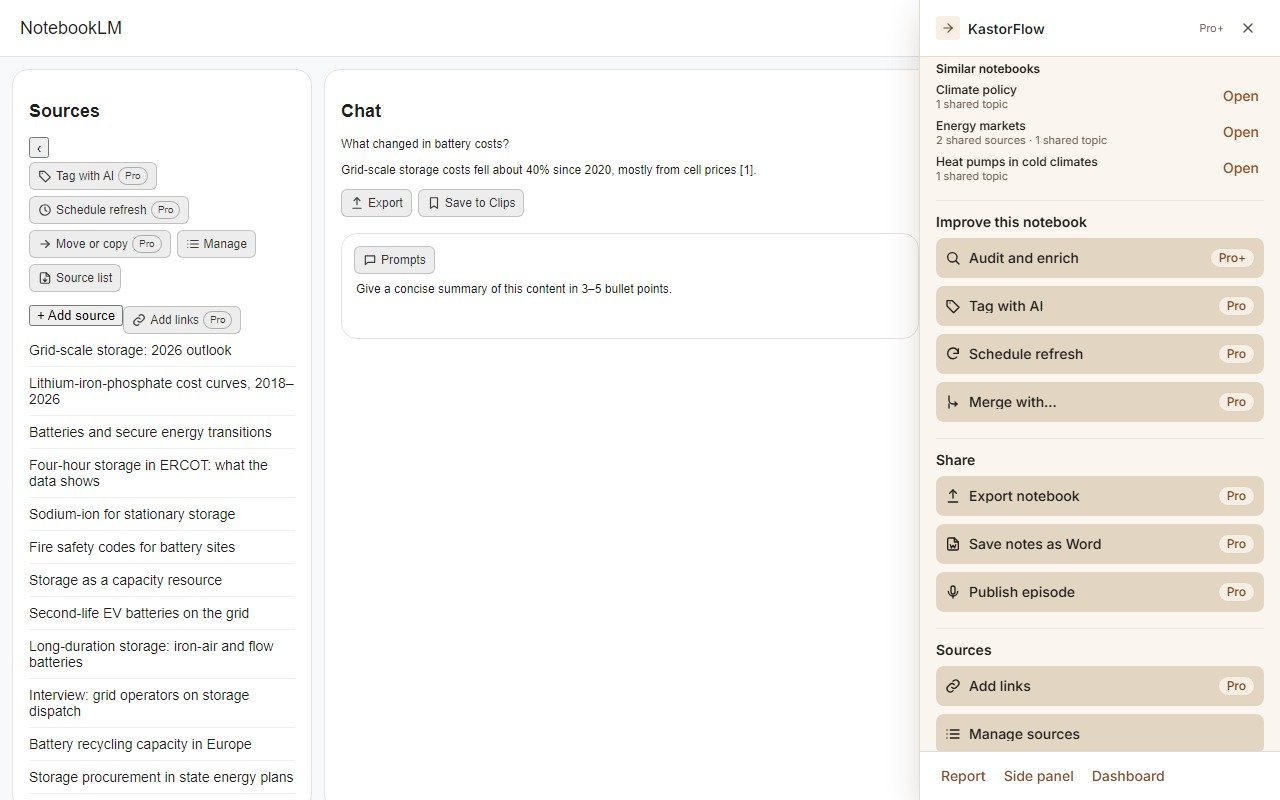
Good to know before you use it:
- KastorFlow deletes through Gemini Notebook, so it's just as permanent.
- If you switched Google accounts in the meantime, it deletes nothing and tells you: "Your NotebookLM account changed. Nothing was deleted."
- If some deletes fail, it says how many went through and keeps the rest selected, so you can try again.
Bulk delete and Find duplicates are on every plan, including Free. Compare plans
Chat history: keep it or delete it
In our test the chat was still there after we reloaded the notebook, with a time stamp. Gemini Notebook keeps it between visits.
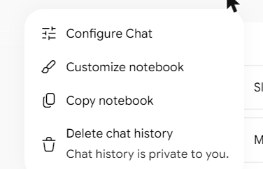
- To delete it: open the More options menu at the notebook's top right and choose Delete chat history. The same menu has Configure Chat, Customize notebook and Copy notebook.
- To keep an answer first: click Save to note under it. The note keeps its tables and clickable citations.
- The menu notes that "Chat history is private to you."
- Copying a notebook doesn't copy its chat history or notes.
Save to note and copying from Google's help pages Use chat in Gemini Notebook and Create a notebook, read October 25, 2026. To keep answers outside Google, KastorFlow exports a chat answer as a Markdown note: NotebookLM and Obsidian.
Select sources, delete them in one go, and find duplicates first. Free to install, no account needed.
Add to ChromeQuestions
Can I delete several sources at once in NotebookLM?
Not in Gemini Notebook itself, as of our test on November 6, 2026: each source is removed from its own menu. KastorFlow, a Chrome extension, adds a Delete button for the sources you tick, in one notebook or across all of them, on its free plan.
Does unticking a source delete it?
No. The ticks only choose which sources the chat uses. An unticked source stays in the notebook and still counts toward its source limit.
Can I get a deleted source back?
No. Gemini Notebook's warning says the source is permanently removed. Add it again from the original file or link; it comes back as a new source.
Does deleting a source change my Audio Overviews or flashcards?
No. The warning says Studio outputs you've generated with that source won't change. Delete them or make them again if they shouldn't use it any more.
Does deleting a notebook delete its sources?
Yes. Deleting a notebook removes the notebook and its sources.
How do I delete chat history in NotebookLM?
Open the More options menu at the notebook's top right and choose Delete chat history. Save any answer you want to keep with Save to note first. Chat history is private to you.
More on sources: Import many at once · Keep them up to date · Folders and labels · Limits by plan