 KastorFlow
Tested and updated October 30, 2026
NotebookLM and Obsidian: which to use, and both together
They do different jobs: Obsidian keeps the notes you write, and Gemini Notebook answers questions about documents you add. Gemini Notebook has no Obsidian connection, but it reads Markdown, so you can upload vault notes as sources. In our test links stayed as plain text, images didn't come in, and private comments did. KastorFlow connects the two through Obsidian's Local REST API plugin, in both directions.
Gemini Notebook is NotebookLM's new name. Everything here works the same in both.
NotebookLM vs Obsidian
| Gemini Notebook (NotebookLM) | Obsidian | |
|---|---|---|
| What it is | An AI notebook that answers from the sources you add | A note-taking app for your own linked notes |
| Where your notes live | In your Google account | On your device, as plain Markdown files |
| AI | Built in: answers with citations, Audio Overviews, flashcards, reports | None built in; community plugins with your own model |
| Links between notes | Plain text in a source | The heart of the app: backlinks and a graph |
| Price | Free; more with a Google AI plan | Free, for personal and commercial use; Sync $4 a month billed yearly ($5 monthly), Publish $8 ($10 monthly) |
| Best for | Understanding a set of documents fast | Notes you write and keep for years |
Most people who ask "NotebookLM or Obsidian?" end up using both: Obsidian for what you write, Gemini Notebook for asking questions of what you read. Choose Obsidian alone if you want your notes on your own device. Choose Gemini Notebook alone if you only need to understand some documents.
Obsidian's facts from its pricing page, home page and core plugins list, read October 25, 2026.
What happens to Obsidian notes in NotebookLM
On October 30, 2026 we built a small test vault of three linked notes, uploaded the .md files to a new notebook, then read each source and questioned the chat.
| In the note | In the notebook |
|---|---|
| Headings and tables | Kept. Tables display as tables. |
| Properties (frontmatter) | Plain text at the top of the source, and the chat can read it |
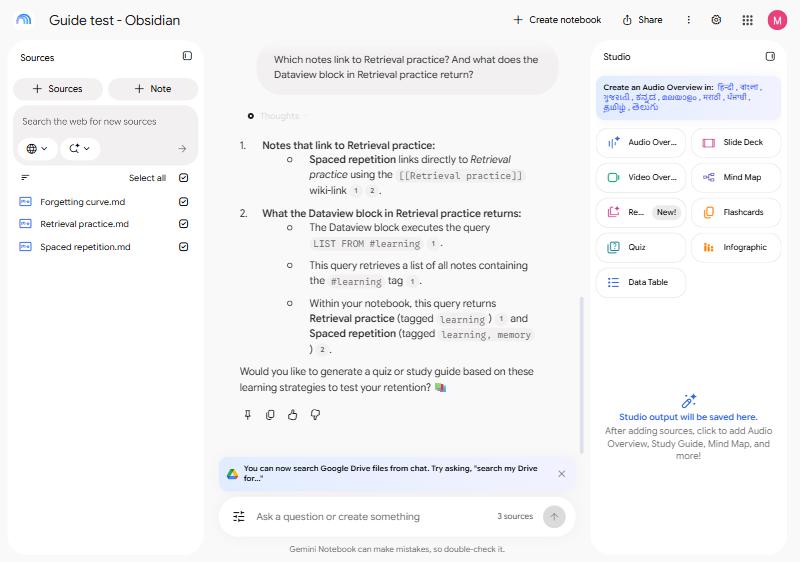
[[Wiki links]] | Plain text, not clickable, and the linked note isn't added. The chat can still read them: it told us which note linked to which. |
![[Embedded image]] | Just that text. The image doesn't come in. |
| Callouts and checkboxes | The words stay, as plain text |
| #tags | Plain text |
| A Dataview block | It doesn't run. The chat described what the query would return, working from the notes it could see. |
%% Private comment %% | Imported. The chat quoted a code word we had hidden in one. |
Check for private comments before you upload. A comment between %% marks is hidden in Obsidian's reading view, but it's still in the file. If it holds something private, remove it first or leave that note out.
By hand
- In the notebook, click Sources, then Upload files.
- Pick the .md files from your vault folder. You can pick several at once, and each becomes one source.
- Add linked notes yourself. A link in a note doesn't bring the other note with it.
- Copy answers you want to keep, and paste them into Obsidian.
Two limits matter. Uploaded notes don't update when you edit them, so upload again after big changes. And each note fills a source slot: 50 on the free plan. For a larger vault, combine related notes into one file first.
Markdown is among the file types in Google's help page Add or discover new sources for your notebook, read October 30, 2026.
Connect your vault, with KastorFlow
You need Obsidian's desktop app running, and its Local REST API community plugin turned on with the non-encrypted (HTTP) server enabled on port 27123.
- In Obsidian: Settings, Community plugins, Browse, find Local REST API, install and enable it. In its settings, turn on the non-encrypted (HTTP) server and copy the API key.
- In KastorFlow: Connections → Obsidian, paste the key, then save and test. Allow access when Chrome asks.
Vault notes into a notebook
- In Connections → Obsidian, under Linked notebooks, choose Add link.
- Pick a notebook, then a vault folder or specific notes.
- Choose how notes become sources: Auto, Precision or Bundle, which puts several notes in one source to save room. Then Sync.
Answers and artifacts back to the vault
- Download artifacts as an Obsidian-ready ZIP, which needs no plugin, or push them straight into a vault folder when the plugin is connected.
- Export a chat answer as a Markdown note from KastorFlow's panel in the notebook.
The Obsidian connection is on Pro+, with Readwise, Slack and Discord. Exports go to a KastorFlow folder in your vault unless you choose another.
Your vault and your notebooks, connected both ways. Free to install, no account needed to start.
Add to ChromeQuestions
Can NotebookLM connect to Obsidian?
Not by itself. Gemini Notebook, NotebookLM's new name, reads Markdown files you upload. KastorFlow, a Chrome extension, connects through Obsidian's Local REST API plugin to sync vault notes in and send answers and artifacts back.
Is NotebookLM better than Obsidian?
They do different jobs. Gemini Notebook, NotebookLM's new name, answers questions from documents you add, with citations. Obsidian keeps notes you write as Markdown files on your device and has no built-in AI. Many people use both. Side by side
Does NotebookLM read Markdown files?
Yes. Upload .md files in Add sources and each becomes a source. In our test tables displayed as tables, and the rest stayed as text.
Does NotebookLM understand Obsidian links?
Partly. A link stays as plain text, so you can't click it and the linked note isn't added. The chat can still read the text: it told us which note linked to which.
Does NotebookLM see Obsidian's private comments?
Yes. A comment between %% marks stays hidden in Obsidian's reading view but came through in the upload, and the chat quoted it. Remove anything private before you upload.
Do I need an Obsidian plugin?
For syncing notes in and pushing to the vault, yes: Local REST API, with Obsidian's desktop app running. An Obsidian-ready ZIP download works without it.
Related: Organize notebooks · Flashcards to Anki · Automations · Import many sources