 KastorFlow
Tested and updated November 6, 2026
Organize every NotebookLM notebook and source
For Gemini Notebook, formerly NotebookLM, once you have more notebooks than fit on one screen.
Gemini Notebook now groups notebooks into Collections and sorts the sources inside a notebook under auto-labels. That works well one notebook at a time. KastorFlow adds the view across all of them: a library map, search across every notebook (Ctrl+K), tags and AI tags, folders, a duplicate finder, bulk delete, merges and refresh. The library, search, your own tags, bulk delete and the duplicate finder are free; the library and search need a free account after your first 7 days.
What Gemini Notebook does on its own
We checked on November 6, 2026, in a test notebook:
- Collections group notebooks on the home page, under their own tab. You name a collection and tick the notebooks that belong in it.
- Auto-label sources by topic sorted our 8 sources into three labels in about 8 seconds. Labels can be renamed or removed, and a source can be moved to another label.
- Tick boxes beside sources choose what the chat reads. They don't select sources for deleting.
- Deleting is one source at a time, and permanent.
- Duplicates aren't caught: a link we pasted twice came in twice.
- Website and YouTube sources have no refresh. They stay as they were on the day you added them.
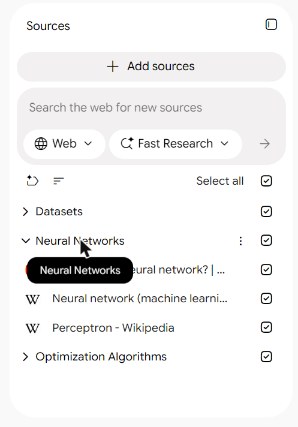
If you have a few notebooks, each about one thing, that may be all you need. More on each: Collections and labels · deleting sources · keeping sources current.
Where it runs out: work that spans notebooks
| The job | Gemini Notebook alone | With KastorFlow |
|---|---|---|
| Group notebooks | Collections | Its own collections, a Starred list and a map of every notebook |
| Group sources | Labels, inside one notebook | Folders and tags across every notebook |
| Find a source when you don't know which notebook it's in | Not something we found | Ctrl+K searches notebooks, sources and tags at once |
| Clear out duplicates | Spot them by eye, delete one at a time | Find duplicates ticks the extra copies; delete them in one go |
| Delete many sources | Three clicks per source | Tick and delete, in one notebook or across notebooks |
| Update web pages | Add each link again, remove the old copy | Refresh sources does a whole notebook (Pro) |
The tools, and which plan has them
| Tool | What it does | Plan |
|---|---|---|
| Library map | Every notebook on one map, seen by activity, topics, tags or artifacts, or as a list | Free (a free account after 7 days) |
| Workspace search | Ctrl+K finds notebooks, sources and tags across the whole library | Free (a free account after 7 days) |
| Notebook report | One page per notebook: its numbers and a knowledge graph of its sources grouped by topic | Free |
| Tags | Your own tags on sources, with filters | Free |
| Tag with AI | Tags sources from your own tag list; AI tags are marked and can be cleared on their own | Free: 20 sources a month. Pro: 500. Pro+: 1,500 |
| AI tagging of new imports | Tags each new source as it arrives | Pro and Pro+: 50 sources a month |
| Collections | Group notebooks; one notebook can be in several | Free |
| Folders | Group sources from any notebook, two levels | Free: up to 10 folders. Pro and Pro+: no limit |
| Source tools | Find duplicates, rename and delete many sources at once | Free |
| Merge notebooks | Two or more notebooks into one | Pro and Pro+ |
| Move or copy sources | Between notebooks | Pro and Pro+ |
| Refresh sources | Bring web links and Drive files up to date | Pro and Pro+ |
| More than one account | Switch between Google accounts' notebooks | Pro and Pro+ |
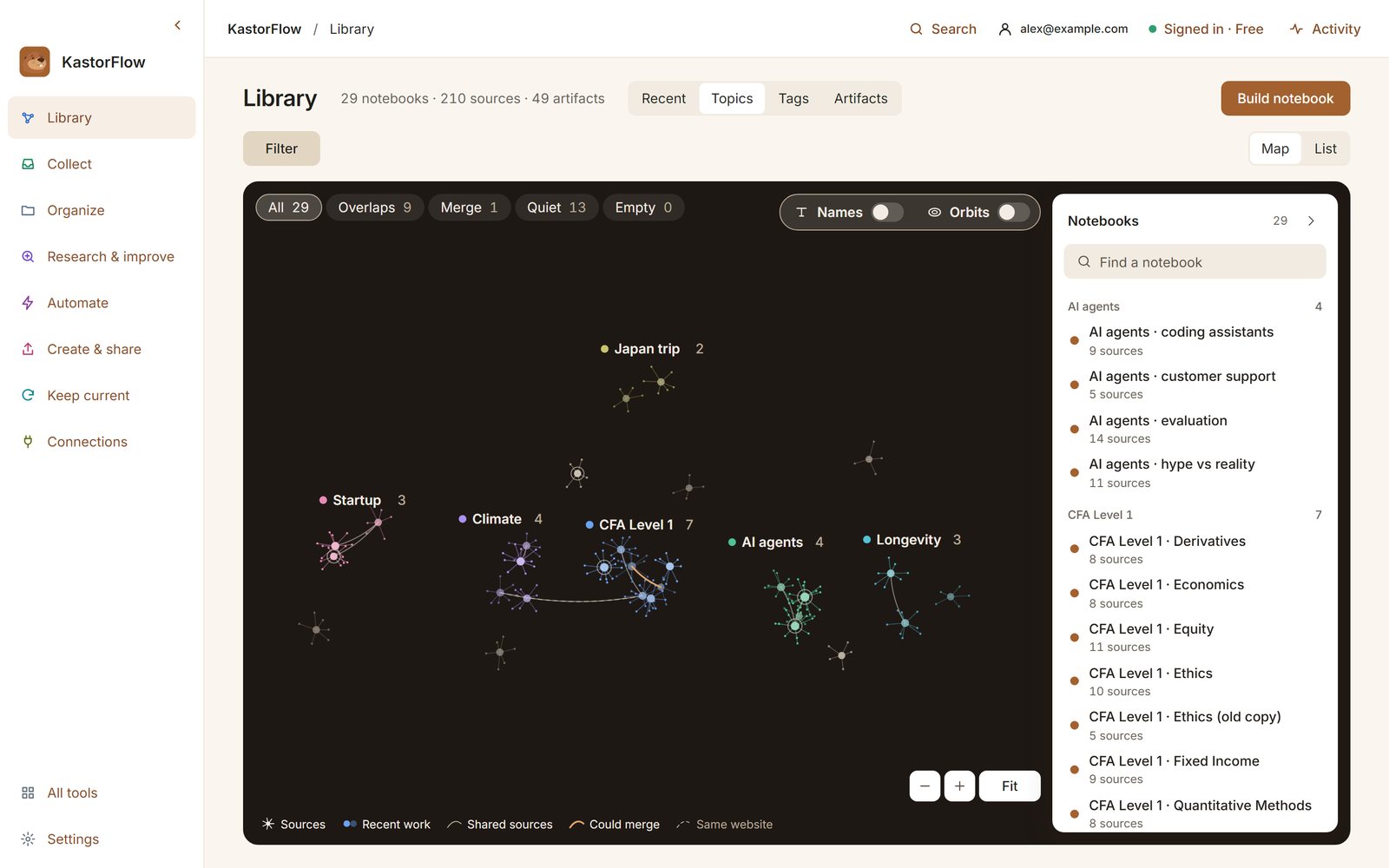
Plans and limits as of November 6, 2026. Every tool by plan
A first tidy-up, step by step
If your notebooks have grown without a plan, this order saves the most time:
- See everything. In KastorFlow's dashboard, open Organize → Sources. It reads every notebook's sources into one list.
- Clear duplicates. For each big notebook, open Manage sources in the side panel and click Find duplicates. It ticks extra copies that share an address, or a name and size, and keeps the first of each. Delete them.
- Make a short tag list. Five to ten tags you'd actually filter by. Then use Tag with AI, which picks from your list (Choose tags for AI…). Clear AI tags removes only the AI's, so trying it costs nothing.
- Put projects in folders. Tick sources and click Move to folder. Folders can have one level of subfolders.
- Group the notebooks. Use Gemini Notebook's Collections, or KastorFlow's if you want a notebook in more than one group.
- Keep it tidy. On Pro, an automation with the trigger Source is imported can Move to folder and AI-tag it for every new source. Automations
What stays on your machine, and what changes in Google
- KastorFlow keeps a working copy of your library in your browser, so the map and search work without sending your notebooks anywhere.
- Tags, folders and KastorFlow's collections are kept in this browser too. They don't appear in Gemini Notebook, and Gemini Notebook's labels and Collections don't appear in KastorFlow.
- Deleting, renaming, merging, moving between notebooks and refreshing all happen in Gemini Notebook. Those change your real notebooks, and deletes are permanent there too. KastorFlow asks before it deletes.
- KastorFlow doesn't raise Gemini Notebook's limits. A free notebook still holds 50 sources. Limits by plan
Then make the sources better
Organizing shows what you have. The audit shows which sources to drop and which kinds are missing, and automations keep new sources tagged and filed as they arrive.
More: NotebookLM extensions compared · YouTube to NotebookLM · Import many sources · Export notes and artifacts · Delete sources
Every notebook, searchable and on one map. Free.
Add to ChromeQuestions
How do I organize hundreds of NotebookLM notebooks?
Gemini Notebook, NotebookLM's new name, groups notebooks into Collections and sorts the sources inside each notebook under labels. KastorFlow, a Chrome extension, adds a library across every notebook: a map, search across all of them (Ctrl+K), tags on sources, folders, merges and a duplicate finder.
Can I search across all my NotebookLM notebooks?
Yes, with KastorFlow's workspace search (Ctrl+K). It finds notebooks, sources and tags across the whole library, on your own machine. It's free; after your first 7 days it needs a free KastorFlow account.
Can AI tag my NotebookLM sources?
Yes. KastorFlow's Tag with AI tags sources from your own tag list and marks the tags it added. Free covers 20 sources a month, Pro 500 and Pro+ 1,500. On Pro an automation can also tag new sources as they arrive, 50 a month.
How do I find duplicate sources in a notebook?
Open KastorFlow's Manage sources for the notebook and click Find duplicates. It ticks extra copies that share an address, or a name and size, and keeps the first of each. It's free. Gemini Notebook doesn't flag duplicates: in our test a link pasted twice came in twice.
Does Gemini Notebook have folders now?
Partly. In our test on November 6, 2026 it had Collections, which group notebooks, and auto-labels, which group the sources inside one notebook. KastorFlow's folders and tags group sources across every notebook, alongside them.