 KastorFlow
Tested and updated November 6, 2026
Import many sources into NotebookLM at once
Yes, Gemini Notebook takes several links at once. In Add sources → Websites, paste them separated by a space or a new line. We pasted 7 links in one go and all 7 came in within about 30 seconds, each as its own source. It didn't catch a link we had pasted twice, and it can't open the links inside a CSV file, take your open tabs or read a feed. KastorFlow does those, skips links the notebook already has, and checks there's room before it starts.
Gemini Notebook is NotebookLM's new name. Everything here works the same in both.
What happened when we pasted 7 links at once
On November 6, 2026 we opened a test notebook that held one YouTube video. In Add sources we chose Websites. The small print under the box says how to add more than one: "To add multiple URLs, separate with a space or new line."
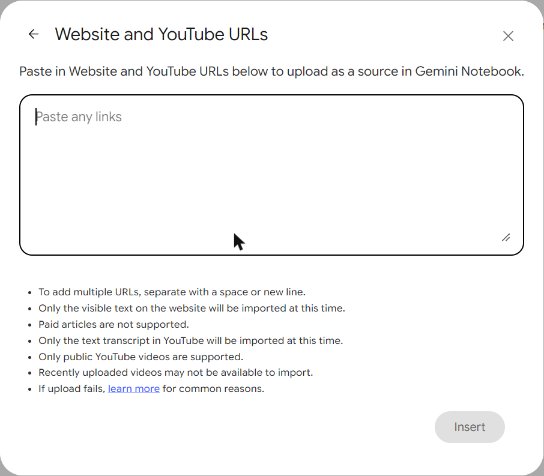
We pasted 7 links, separated by spaces: five Wikipedia articles, one of them pasted twice, and a second YouTube video. All 7 came in within about 30 seconds.
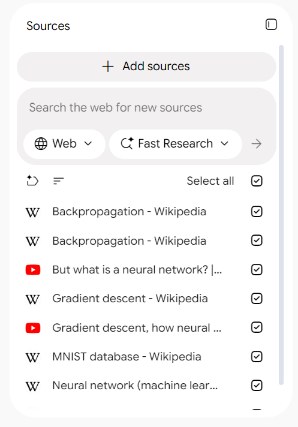
Three things we noticed:
- Duplicates aren't caught. The article we pasted twice came in twice: two sources, two slots, no warning.
- Titles come from the page, not the link. One Wikipedia link redirects to another page, and it came in under that page's current title.
- The list is sorted by title. New sources are mixed in with what was already there, so check the whole list, not just the top or bottom.
In our October 30 test with 18 YouTube links, links that failed stayed in the list in red, with an info icon that shows the reason.
Which way fits your list
| What you have | Where to do it | Plan |
|---|---|---|
| A handful of links you've copied | Gemini Notebook, Add sources → Websites | Any Google account |
| Files in Google Drive | Gemini Notebook, Add sources. Google's help says you can pick one or several | Any Google account |
| Links in a spreadsheet or CSV file | KastorFlow, Collect → CSV file | KastorFlow Pro |
| Pages open in your browser | KastorFlow, Open tabs | KastorFlow Free: one at a time. Pro: all at once |
| A blog or news feed | KastorFlow, RSS feeds | KastorFlow Pro |
| A YouTube playlist or channel | KastorFlow's YouTube import. YouTube guide | KastorFlow Free: 3 runs a month. Pro: no monthly limit |
| A whole website | Neither tool crawls a site. Collect the page links and paste them as a list |
Paste many links in Gemini Notebook
- Open the notebook and click Add sources.
- Choose Websites. The box takes web pages and YouTube videos.
- Paste the links, separated by a space or a new line, and add them.
- Wait for each one to load. Every link becomes its own source.
Before you paste a long list:
- Count your slots. Every link uses one, repeats included. A notebook holds 50 sources on the free plan, 100 with Google AI Plus and 300 with Google AI Pro. Limits by plan
- Remove repeats yourself. Sorting the list in a spreadsheet first makes them easy to spot.
- Know what comes in. The small print says only the visible text of a page is imported, paid articles aren't supported, and for YouTube only the transcript of public videos comes in.
- A CSV file won't do it. Uploaded as a file, a CSV becomes one source holding its own text. The links inside it aren't opened.
Small print from Gemini Notebook's Add sources box, November 6, 2026. Drive and CSV from Google's help page Add or discover new sources for your notebook, read October 22, 2026.
What goes wrong, and the fix
- The same page is in twice. Delete the extra copy from its menu, or let a duplicate finder pick them out. Delete sources
- A link is red. Click the info icon for the reason. In that October test, a channel link failed with "Unable to import this web page due to domain restrictions," and a video with no captions failed with "Transcript not available."
- A playlist link brought in almost nothing. It imports the playlist page's text (titles and lengths), not the videos. Paste the video links, or use a playlist tool. A whole playlist
- The notebook filled up halfway. Remove sources you don't need, or split the list across two notebooks.
- A page came in thin. Pages behind a login or paywall only give their visible text. Save the page as a PDF and upload that instead.
With KastorFlow
Everything below starts in KastorFlow's dashboard, on Collect. Choose the notebook in Adding to first.
Many links
- Paste the links into the Paste links box at the top and click Import. They go in as one run.
A CSV of links
- Under Files, open CSV file.
- Choose the file or drop it in, or paste the CSV text.
- KastorFlow finds the column of links by itself and skips a header row. Rows it can't use are listed with the reason, such as "no link in this row" or "not a valid link."
- Click Import with the number of links.
Your open tabs
- Under Browser, open Open tabs, tick the tabs and import them. The side panel has Open tabs too, for the pages open in that window.
An RSS or Atom feed
- Under Feeds, open RSS feeds and paste the feed's address.
- Click Fetch, tick the items you want, then Import selected.
What it does that the paste box doesn't:
- It skips what's already there. A link the notebook already has isn't added again: "1 was already there, so it wasn't added twice." Repeats inside the same list are dropped too.
- It checks for room first. If the links don't fit, it says how many slots are free and how many the import needs, and starts nothing. A notebook that's only shared with you to view is refused too.
- It keeps going without you. You can close the page and the imports keep running. Recent imports at the bottom of Collect shows each run: how many came in, why any didn't, and Retry.
And what it doesn't change:
- It adds sources through Gemini Notebook, so the same rules apply: page text only, YouTube transcripts only, and your Google plan's source limit per notebook.
- A feed is read once. KastorFlow takes its current items; the feed isn't saved or watched.
- It doesn't crawl a whole website in this version.
On Free you import one link at a time, up to 10 a day, and open tabs one at a time. Several links at once, a CSV of links and RSS feeds are on Pro, which also adds all your open tabs at once and has no daily link limit. Compare plans
A CSV of links, your open tabs or a feed, into a notebook in one run. Free to install, no account needed.
Add to ChromeQuestions
Can NotebookLM import several URLs at once?
Yes. In Add sources → Websites, paste the links separated by a space or a new line. We pasted 7 at once and all 7 came in within about 30 seconds, each as its own source.
Does NotebookLM skip duplicate links?
No. In our test a link pasted twice came in twice, as two sources using two slots. KastorFlow skips a link the notebook already has, and its Find duplicates tool picks out copies already there.
Can I import a CSV of links into NotebookLM?
Gemini Notebook uploads a CSV file as one source, its own contents; it doesn't open the links inside it. KastorFlow, a Chrome extension, reads the links from the CSV and imports each page as its own source, on its Pro plan.
Can NotebookLM import a whole website?
No. It imports the text of the page you link, not the pages it links to. Collect the page addresses you want and paste them as a list of links.
Can I import OneNote into NotebookLM?
Not directly: OneNote isn't one of Gemini Notebook's source types. Export the pages from OneNote as PDF or Word files and upload those, since Gemini Notebook accepts both.
What happens if the notebook is full?
A free notebook holds 50 sources, and every link uses one, repeats included. Before an import starts, KastorFlow checks the notebook: if the new links don't fit, it says how many slots are free and starts nothing.
Is bulk import free in KastorFlow?
Free imports one link at a time, up to 10 a day, and open tabs one at a time. Several links at once, a CSV of links and RSS feeds are on Pro, which also adds all your open tabs at once.
More on sources: Delete sources · Keep them up to date · Folders and labels · YouTube to Gemini Notebook