 KastorFlow
Tested and updated October 30, 2026
How to use NotebookLM (Gemini Notebook)
Go to notebook.google.com, sign in with a Google account and create a notebook. Add your sources: files, websites, YouTube videos, Google Drive files or copied text. Then ask questions; answers come from your sources and cite the passage they used. If the answer isn't there, the chat says so instead of guessing. Studio turns the same sources into Audio Overviews, reports, flashcards and more. It's free, with up to 50 sources per notebook.
NotebookLM is called Gemini Notebook since July 16, 2026. Everything here works the same in both.
Step by step
- Create a notebook. Open notebook.google.com, sign in and click New notebook. Give each subject or project its own notebook, then click the title to name it.
- Add sources. Click Sources. You can upload files, or choose Websites, Play Books, Drive, Textbooks or Copied text. Paste several links at once, with a space or a new line between them.
- Read the summary. Once your sources load, the notebook writes a short overview and suggests questions.
- Find more sources. Type a topic in the search box in the Sources panel. Fast Research and Deep Research search the web and list sources to add. Add only the ones you'd trust. How the two compare
- Ask questions. Type in the chat. Click a citation number to open the source with the passage highlighted. Untick a source to leave it out of the answer.
- Save what matters. Click the pin under an answer to save it as a note. Saved answers are view only, and they appear under Notes in the Sources panel.
- Make something. Open a Studio option, choose its settings and pick Generate now or Generate later.
- Share. Click Share and add people. A notebook starts as Restricted, so only people you add can open it.
Checked in Gemini Notebook on October 30, 2026. What changed with the rename
What happened when we built a notebook
On October 30, 2026 we started from an empty notebook and added two research paper PDFs by link and one Wikipedia page. Then we timed each step.
| What we did | How long | What we got |
|---|---|---|
| Added 3 sources | Under 30 seconds | All three loaded, with a summary of the notebook |
| Asked for a number from a table in a PDF | Under 30 seconds | The right number, with a citation that opened the table |
| Saved an answer as a note | A few seconds | A titled note, and the source count went from 3 to 4 |
| Flashcards, a data table and a briefing | A minute or two each | All three ready together in Studio |
| A Deep Dive Audio Overview | About 6 minutes | 14 minutes 15 seconds of audio |
Times come from one notebook on one day, and they'll vary with your sources and with demand.
Does NotebookLM use the internet to answer?
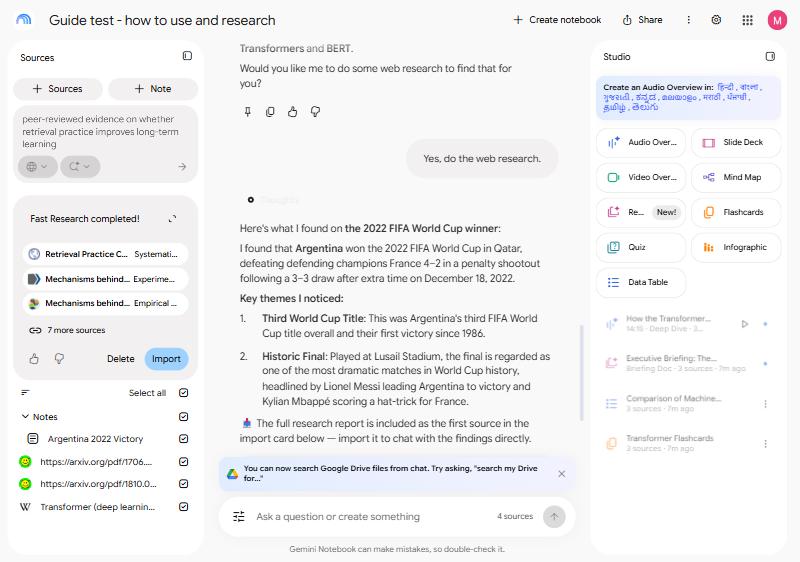
Not unless you agree. We asked two questions that weren't in our sources: the capital of France, and who won the 2022 World Cup. Both times the chat said our sources didn't cover it, and offered to do web research.
We said yes to the second one. In about 30 seconds it gave the right answer, with a card offering a research report and web sources to import. Nothing joined the notebook until we chose Import.
That's the main difference from an ordinary chatbot. By default you know where an answer came from, but you also can't use it for general questions without that extra step.
What Studio makes
| Output | Good for | Choices you get |
|---|---|---|
| Audio Overview | Listening on the go | Deep Dive, Brief, Critique or Debate; short, default or long |
| Video Overview | A quick visual explanation | Short (vertical) or Explainer (widescreen) |
| Reports | A written brief or guide | Interactive or Document; Briefing Doc, Study Guide, Blog Post, your own, or templates suggested from your sources |
| Flashcards | Testing yourself | Fewer, standard or more cards; easy, medium or hard; with or without images |
| Quiz | Testing yourself | We didn't open this one |
| Mind map | Seeing how topics connect | A topic to focus on |
| Data table | Pulling facts into rows and columns | You describe the columns you want |
| Slide deck | A presentation built from the sources | We didn't open this one |
| Infographic | One visual page of the key points | We didn't open this one |
The options we opened also let you choose the language and which sources to use. They show an AI Usage bar with what you've used and what this will cost, so you can decide before you start. When you're out of limits, Generate later queues it to run by itself.
Play Audio Overviews in any podcast app: Audio Overviews as a podcast
How to use NotebookLM effectively
- Keep notebooks focused. One subject per notebook. In another test the chat mixed two versions of a course in one notebook and gave a confident, wrong time. What happened
- Rename sources from links. A PDF added by link keeps its web address as its name, which makes citations hard to read.
- Be exact. "What score did the base model get on English to German?" works better than "How good was it?"
- Ask for a table. "Compare these in a table: task, data, result" is often more useful than a long answer.
- Check the citations. Click through on anything you'll rely on. The footer says it plainly: it can make mistakes.
- Mind the limits. Free notebooks hold 50 sources; usage refreshes every 5 hours up to a weekly limit. Is NotebookLM free? The limits
For a goal: how to use NotebookLM to study, how to use NotebookLM for research, or eight NotebookLM use cases.
Where KastorFlow helps
KastorFlow is a Chrome extension for Gemini Notebook. It saves AI chats, web pages and whole YouTube playlists as sources, searches every notebook at once, audits a notebook's sources and fills the gaps with sources you approve, and automates the upkeep.
Better sources in, better answers out. Free to install, no account needed.
Add to ChromeQuestions
Is NotebookLM the same as Gemini Notebook?
Yes. Google renamed NotebookLM to Gemini Notebook on July 16, 2026. It's the same product at notebook.google.com, and old notebooklm.google.com links still work.
Is NotebookLM free?
Yes, with a Google account. On the free plan a notebook holds up to 50 sources and you can have 100 notebooks. Since September 2, 2026 usage is measured by compute and refreshes every 5 hours up to a weekly limit. Limits and pricing
Does NotebookLM use the internet to answer?
Not by default. If the answer isn't in your sources, the chat says so and offers to do web research. If you agree, it writes a short answer and offers a report and web sources that you can import. What we saw
What kinds of sources can I add?
Files such as PDFs, images, documents and audio, website and YouTube links, Google Drive files, Play Books, textbooks and copied text. A link to an online PDF works too.
How long does an Audio Overview take?
Our 14-minute Audio Overview took about 6 minutes to make. Flashcards, a data table and a briefing each took a minute or two.
How do I use it to study?
One notebook per course, then quizzes and flashcards to test yourself. How to study with NotebookLM
What's new in it?
Google adds features often. What's new in Gemini Notebook