 KastorFlow
Tested and updated November 6, 2026
Can NotebookLM watch YouTube videos?
No. Gemini Notebook reads a YouTube video's transcript, not its picture. We added an 18-minute explainer that is almost all animation and asked what was on screen. It said it couldn't tell, because the source is only the spoken words. Anything shown but not said, such as slides, code, charts or a whiteboard, never reaches your notebook. You can bring the picture in yourself with slides and screenshots, or with KastorFlow's Video frames.
Gemini Notebook is NotebookLM's new name. It reads videos the same way in both.
What happened when we tried it
On November 6, 2026 we made a new notebook and added one video: 3Blue1Brown's But what is a neural network? It's a good test, because the whole lesson is drawn on screen: a grid of glowing pixels, layers of circles and lines between them.
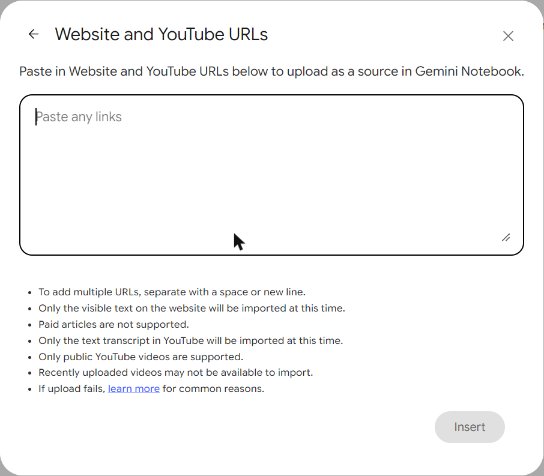
The link imported in a few seconds. Gemini Notebook named the notebook after the video and wrote a short summary of it. Before we pasted the link, the Add sources box had already warned us: "Only the text transcript in YouTube will be imported at this time."
Then we asked: "What colour is the background of this video, and what is drawn on screen when the network is first shown? Describe the picture, not what is said."
It didn't guess. It said the transcript doesn't describe the background or the graphics, so it couldn't answer. Then it told us what the narrator says about the network: 784 input neurons for a 28 by 28 pixel image, two hidden layers of 16, and 10 outputs, one for each digit. It even mentioned green for positive weights and red for negative ones, because the narrator says those colours out loud.
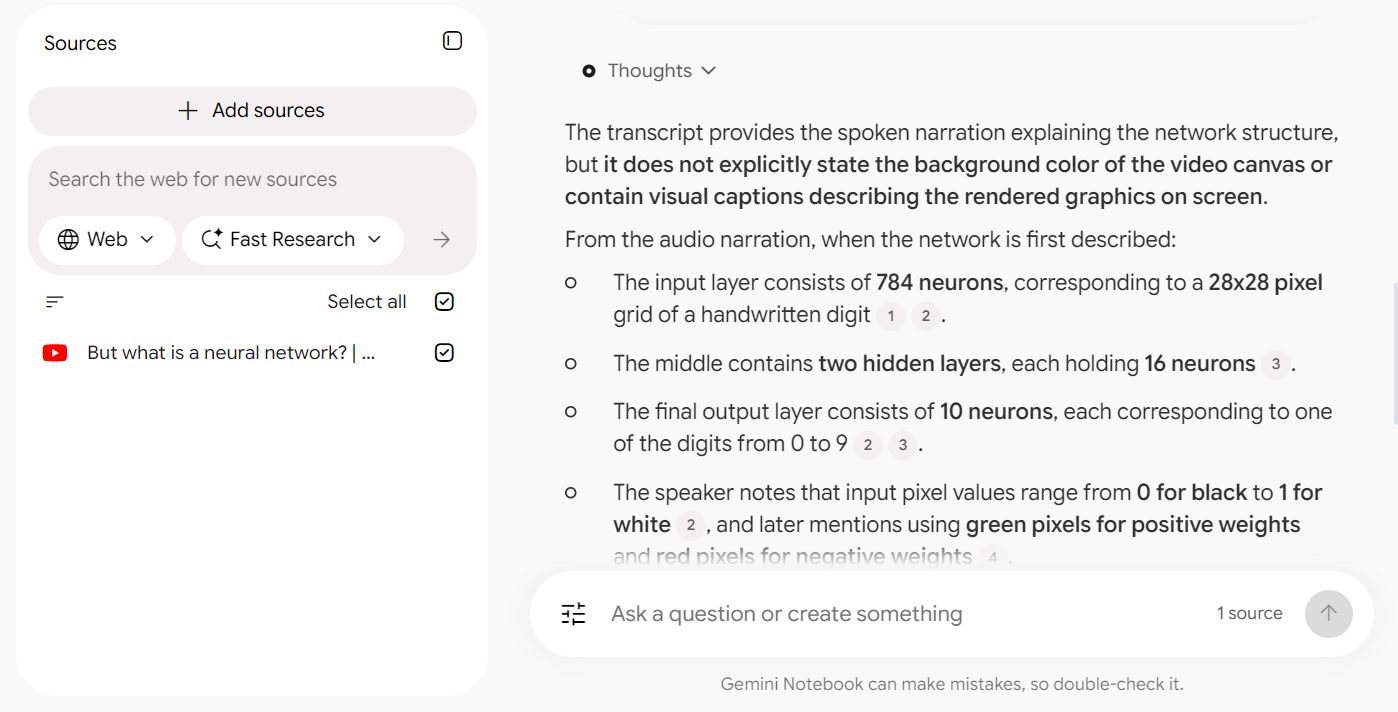
That's the rule to remember. If the speaker says it, your notebook has it. If the speaker only points at it, your notebook doesn't.
Which videos lose the most
| Kind of video | What reaches your notebook | What's missing |
|---|---|---|
| Interviews, podcasts, talks without slides | Nearly everything | Little. The value was in the words. |
| Lectures where the teacher reads the slides | Most of it | Diagrams, formulas and anything on a slide that isn't read out |
| Lectures that say "as you can see here" | The talk around the slides | The slides themselves, which often hold the key point |
| Coding tutorials | The explanation | The code, which is shown and rarely read out |
| Charts, maps and earnings calls with slides | The commentary | The numbers on the chart, unless someone says them |
| Product demos and walkthroughs | The narration | Which button was clicked and what the screen looked like |
| Music, silent or no-caption videos | Nothing | The import fails: "Transcript not available." |
Before you build a study notebook from a video, ask yourself one question: could I learn this with my eyes closed? If yes, the link is enough. If no, bring in the picture too.
Bring the picture in without an extension
You can do this by hand. It takes a few minutes per video, which is fine for one important lecture.
- Look for the slides. Many lecturers and conference talks link their slides as a PDF in the video description or on the course page. Download the PDF and add it with Add sources → Upload files. Now the chat can quote the slides next to the transcript.
- Take screenshots of the key moments. Pause on each slide, chart or diagram that matters and save a screenshot. Gemini Notebook's upload box lists images as a supported file type, so you can add them as sources.
- Paste the code. Coding channels often link the code on GitHub. Copy the file and add it with Copied text, so the chat can explain the exact lines the video shows.
The downside is the bookkeeping. Each screenshot is its own source, and a notebook holds 50 sources on the free plan, so a slide-heavy lecture can eat your space fast. Gemini Notebook's limits
Supported file types from Gemini Notebook's Add sources box, checked November 6, 2026. Google's help page Add or discover new sources for your notebook says the same about YouTube: transcript only, public videos only.
Bring the picture in with KastorFlow
KastorFlow's Video frames does the screenshots for you, and puts them in one source instead of dozens.
- Open the video in Chrome.
- Open KastorFlow's side panel and choose Capture video frames.
- Pick where to start (m:ss) and how long to capture. The default is two minutes at one frame every three seconds.
- For a slide lecture, turn on Keyframes only. It keeps a frame only when at least 10% of the picture has changed, so you get each slide once instead of forty copies of it.
- Keep the transcript on, and start the capture.
The frames and the transcript go into your notebook together as one PDF source. Now the chat can answer "what was on the slide about attention?" and cite it.
A few things worth knowing before you start:
- Keep the video's tab in front while it captures. Chrome stops drawing videos in background tabs, so KastorFlow pauses and waits until you come back.
- You can sample from one frame every 20 seconds up to two frames a second, with at most 200 frames per capture. The panel shows the estimated file size before you start.
- Frames are saved 480 pixels wide to keep the PDF small. That's plenty for slides and charts, but small code on a big screen can be hard to read. For code, the GitHub link above is still the better source.
- If the import doesn't go through, your frames aren't lost. They wait under Saved video frames in the side panel until you finish or discard them.
Free includes 3 captures a month, and Pro has no monthly limit. Compare plans
Keep the slides, not just the words. Free to install, no account needed to start.
Add to ChromeQuestions
Can NotebookLM watch YouTube videos?
No. Gemini Notebook, NotebookLM's new name, reads a video's transcript from its captions and nothing from the picture. In our test it said so itself when we asked what was on screen.
Can NotebookLM read the slides in a YouTube video?
Not from the video link. Upload the slides as a PDF if the speaker shares them, add screenshots as images, or use KastorFlow's Video frames, which adds the frames and the transcript as one PDF source.
Does NotebookLM listen to a video's audio?
It reads the captions, uploaded or automatic, rather than the sound. A video with no speech has nothing to import.
Can NotebookLM transcribe a video?
Not a YouTube video: it imports the captions the video already has, uploaded or auto-generated, and a video without captions won't import. An audio file you upload is different: Gemini Notebook transcribes it when you add it and keeps the text as the source.
Why did NotebookLM describe a colour from the video?
Because the speaker said it. Anything the narrator describes out loud is in the transcript, so the chat can repeat it. It still can't see the picture.
More on YouTube and Gemini Notebook: YouTube to Gemini Notebook · a whole playlist · a channel · notes and flashcards from videos · when a video won't import · KastorFlow's YouTube tools