 KastorFlow
Tested and updated November 6, 2026
Add a YouTube playlist to NotebookLM
Gemini Notebook doesn't open playlists, and the playlist link is a trap. When we pasted one, a source appeared with the playlist's name, but it held only about 700 words of page text: titles, lengths and the description, and none of the transcripts. Paste the videos' own links instead, several at once. KastorFlow reads the playlist for you and adds every video as its own source, or the whole playlist as one source. Merging is 1 playlist a month on Free and 50 on Pro.
Gemini Notebook is NotebookLM's new name. Everything here works the same in both.
What happened when we tried it
On October 30, 2026 we pasted a playlist link into a test notebook. It looked like it worked. A source showed up with the playlist's title, and its summary sounded sure of itself. But when we opened the source, it was the playlist page's text: about 700 words of video titles, lengths and the description. You can't ask about what's said in the videos, because the videos never came in.
Two other results from the same test matter here. A link to one video inside a playlist (the kind with &list= in it) imported that one video only. And the same video pasted twice became two sources, with no warning.
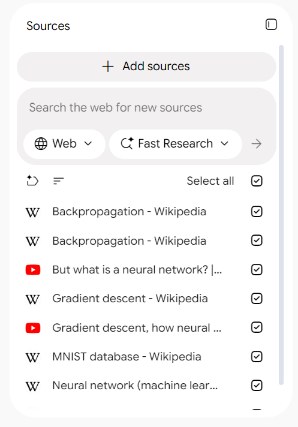
On November 6, 2026 we tried the manual way: 7 links pasted into the box in one go, separated by spaces. All 7 came in within about 30 seconds. The link we had pasted twice came in twice, and the list was sorted alphabetically by title, not in the order we pasted.
Three ways in, compared
| Paste the links yourself | KastorFlow, one source per video | KastorFlow, one merged source | |
|---|---|---|---|
| Copying links | One by one | None | None |
| Notebook slots used | One per video | One per video | One for up to 100 videos |
| Pick single videos for the chat | Yes, with the tick boxes | Yes | No, it's one source |
| Order of the videos | Alphabetical by title | Alphabetical by title | Playlist order, one heading per video |
| Same video twice | Added twice | Skipped if it's already in the notebook | Included once |
| Cost | Free | Free: 3 runs a month. Pro: no monthly limit. | Free: 1 a month. Pro: 50 a month. |
Separate sources suit a course you'll study lecture by lecture: you can tick one lecture for the chat, or delete one later. A merged source suits a long playlist in a small notebook. A free notebook holds 50 sources, so a 40-video playlist fills 40 of them as separate sources, and one as a merged source.
Several videos at once, in Gemini Notebook
- Open the playlist on YouTube. Right-click each video's title and choose Copy link address. Collect the links in a note, one per line.
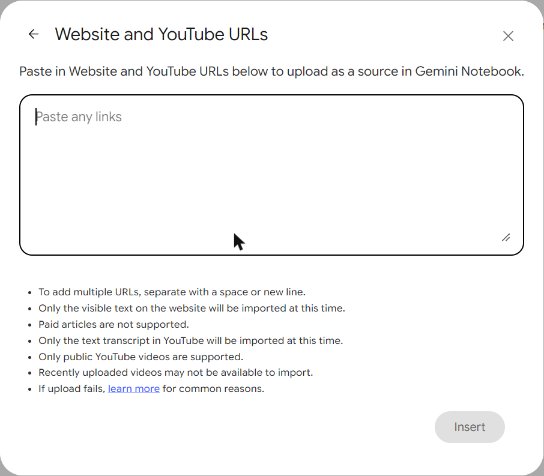
- In your notebook, click Add sources and choose Websites. The box is called Website and YouTube URLs.
- Paste all the links. The small print says: "To add multiple URLs, separate with a space or new line."
- Click Insert. Each video becomes its own source.
Links copied from inside a playlist carry the playlist in them. That's fine: in our test such a link brought in just that one video.
What goes wrong with playlists
- You pasted the playlist link. The source has the playlist's name but no transcripts. Open its menu, choose Remove source, and add the videos instead.
- Some videos fail. A video with no captions or no speech stays in the list in red: "This video cannot be imported. Transcript not available." Lectures without captions are common in older courses.
- The order is lost. Sources sort alphabetically by title. If lecture order matters to you, add a number to the start of each title with Rename source.
- The notebook fills up. Each video uses a slot: 50 on the free plan, more on Google AI plans. Limits by plan
- Sources don't update. A YouTube source's menu has only Move to, Remove source and Rename source. There's no refresh, so a new lecture added to the playlist later has to be added by hand.
Google's own rules: public videos with captions, transcript only, up to 500,000 words of captions per video. From Google's help page Add or discover new sources for your notebook, read October 30, 2026.
A whole playlist, with KastorFlow
- Copy the playlist's address from YouTube. A link to a video inside the playlist works too: KastorFlow reads the playlist part of it and takes the whole list.
- Paste it into the bar at the top of KastorFlow's Collect page. Choose YouTube, each video as its own source, or YoPoD, the whole playlist as one source.
- Click Import. The Import from YouTube window reads the playlist and shows how many videos it found, with titles and lengths.
- Check your choice: One source per video or One merged source.
- Check the notebook under Adding to, then click Import. The import keeps running if you close the window, and a merge says when it's finished.
You can also start on YouTube itself. On a playlist page, KastorFlow adds a NotebookLM button below the playlist's title. It opens Save to NotebookLM, where you pick a notebook or create a new one, and adds each video as its own source. It takes the videos already loaded on the page, so scroll down first in a long playlist.
Honest notes before you start:
- Up to 100 videos. KastorFlow reads the first 100 videos of a playlist. For a longer one, use the creator's shorter playlists or add the rest by hand.
- Room is checked first. If the notebook can't fit the videos, KastorFlow says how many slots are free and starts nothing.
- A merged source keeps the videos apart. Each video's title becomes a heading over its transcript, in playlist order. If the transcripts are very long, the merge is split into more than one source.
- Captions still decide. KastorFlow uses Gemini Notebook's own import to read each video, so a video without captions is left out of a merge too. The finished message says how many parts didn't work.
- Search results can't be merged. A YouTube search imports each result as its own source, about 20 results.
Plan limits as of November 6, 2026. Compare every tool by plan
Add a whole playlist in one go, as separate sources or one. Free to install, no account needed to start.
Add to ChromeQuestions
Can NotebookLM read a YouTube playlist?
Not from the playlist link. In our test Gemini Notebook, NotebookLM's new name, brought the link in as a web page, with titles and lengths but no transcripts. Paste the videos' own links, several at once. KastorFlow, a Chrome extension, opens the playlist and adds its videos for you.
How do I add multiple YouTube videos to NotebookLM?
In Add sources, choose Websites and paste the video links, separated by a space or a new line. Each video becomes its own source. We pasted 7 links at once and all came in within about 30 seconds.
Is there a limit on YouTube playlists in NotebookLM?
Each video uses one of the notebook's sources, 50 on the free plan. KastorFlow can merge up to 100 videos of a playlist into one source, so a long playlist fits.
Should I import each video or one merged source?
Each video if you want to pick single lectures for the chat or delete one later. One merged source if the notebook is short on room. A merged source keeps the playlist order, with each video's title as a heading.
Does NotebookLM keep the playlist order?
No. In our test sources were listed alphabetically by title, not in the order we added them. KastorFlow's merged source keeps the playlist order inside one source.
More on YouTube and Gemini Notebook: YouTube to Gemini Notebook · a channel · notes and flashcards from videos · can it watch videos? · when a video won't import · KastorFlow's YouTube tools