 KastorFlow
Tested and updated November 6, 2026
Folders in NotebookLM
Partly, yes. Gemini Notebook now has Collections, which group notebooks on its home page much like folders, and auto-labels, which sort the sources inside one notebook by topic. We tried both on November 6, 2026: one click grouped our 8 sources into three labels in about 8 seconds. What they don't do is group sources from different notebooks, because labels stay inside their notebook. KastorFlow adds folders and tags for sources across every notebook, free up to 10 folders.
Gemini Notebook is NotebookLM's new name. Everything here works the same in both.
What we found when we tried Collections and labels
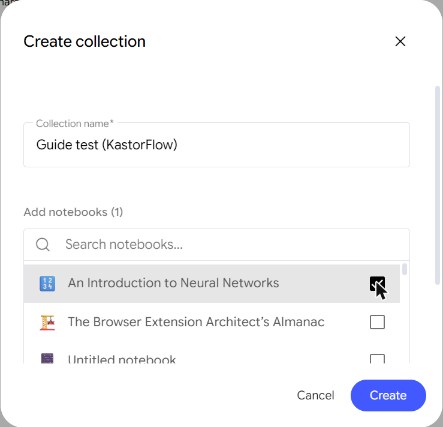
Collections, for notebooks. Gemini Notebook's home page now has four tabs: All, My notebooks, Shared with me and Collections. New collection asks for a name, then lets you tick the notebooks to add, with a search box to find them. Each collection shows as a card with its notebook count. The card's menu has Edit, Delete and Add emoji.
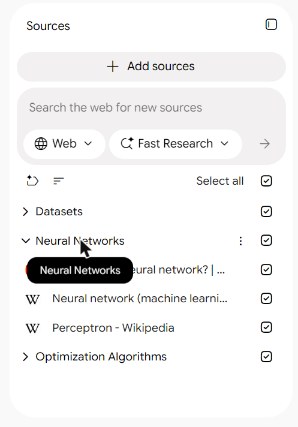
Labels, for sources. Inside a notebook, a button above the source list called Auto-label sources by topic sorts your sources into groups. Our test notebook had 8 sources: Wikipedia articles and two YouTube videos about neural networks. One click made three labels in about 8 seconds: Neural Networks, Optimization Algorithms and Datasets. Each label folds open and shut.
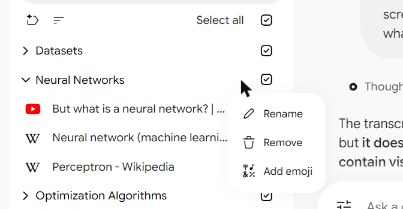
A label's menu has Rename, Remove and Add emoji. Removing a label keeps its sources: they move back to the unlabelled list. A source's menu has Move to, for moving it to another label, plus Remove source and Rename source.
What we didn't test: whether one notebook can sit in two collections, and whether a collection can go inside another.
Which tool groups what
| Tool | Groups | Where you see it | Plan |
|---|---|---|---|
| Collections (Gemini Notebook) | Notebooks | Gemini Notebook's home page, Collections tab | Built in |
| Labels (Gemini Notebook) | Sources inside one notebook | That notebook's source list | Built in |
| Collections (KastorFlow) | Notebooks; one notebook can be in several | KastorFlow's dashboard, and its panel on Gemini Notebook's home page | Free |
| Folders (KastorFlow) | Sources from any notebook, one folder each, two levels | KastorFlow's dashboard, Organize → Sources | Free up to 10 folders; Pro no limit |
| Tags (KastorFlow) | Sources from any notebook, many tags each | KastorFlow's dashboard, and its source manager on notebook pages | Free |
How to choose:
- Each notebook is about one thing. Gemini Notebook's Collections and labels are probably enough. Start there.
- One topic is spread over many notebooks. Say you keep a notebook per client or per course, and want every source about pricing, or every lecture on one theme, in one place. Labels can't do that. You need folders or tags that work across notebooks.
- A source belongs to several topics. Use tags. A source sits in one KastorFlow folder, but it can carry many tags.
Organize with Gemini Notebook alone
Group notebooks into a collection
- On Gemini Notebook's home page, open the Collections tab.
- Click New collection and give it a name.
- Tick the notebooks to add. Use the search box if you have many. Click Create.
- To change it later, open the collection card's menu and choose Edit.
Sort a notebook's sources under labels
- Open the notebook and click Auto-label sources by topic, above the source list.
- Click a label's name to open it and check what landed there.
- Move a source that's in the wrong group: its menu, then Move to, then the right label.
- Give a label a clearer name with Rename in the label's menu.
Tested in Gemini Notebook on November 6, 2026. Google's help page Add or discover new sources for your notebook, read October 21, 2026, also says Gemini Notebook groups sources under labels by itself once a notebook has 5 or more sources.
What Collections and labels don't do
- Labels stay inside one notebook. Each notebook has its own labels, and we found no way to see every "Datasets" source from all your notebooks together.
- Labels don't group notebooks. That's what Collections are for.
- The topic names are picked for you. Rename a label if you'd use other words.
- You can't add a Drive folder as a folder. Gemini Notebook adds files, not folders. From Google Drive you pick files, and each one becomes a source. To add many at once, see bulk import.
Group sources across notebooks: KastorFlow folders
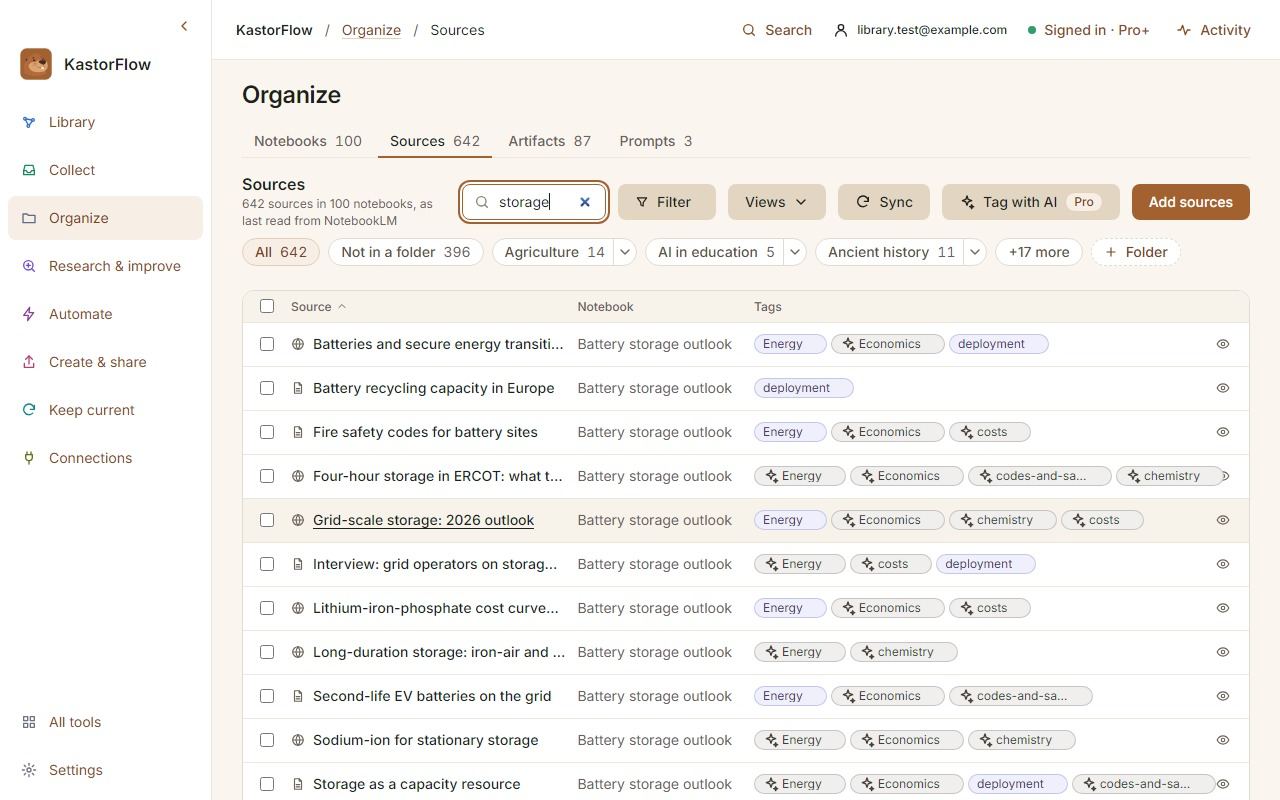
- In KastorFlow's dashboard, open Organize → Sources. It lists the sources of every notebook.
- Tick sources, from one notebook or several, and click Move to folder.
- Pick a folder, or New folder… to make one and move them in one step.
- Folders have two levels: type Research/Papers, or use a folder's menu and choose Add subfolder.
- The folder chips above the list open a folder; Not in a folder shows the rest.
- A folder's menu also has Rename and Delete folder…. Deleting a folder never deletes its sources: they stay in their notebooks and show under Not in a folder.
- Moving a source into a folder doesn't move it between notebooks. It stays where it is in Gemini Notebook.
Free has up to 10 folders. Pro and Pro+ have no limit. Compare plans
Tags, when a source fits more than one place
- Add your own tags to sources in Organize → Sources, or in the source manager on a notebook page. Filter by tag to see every source that carries it, from any notebook.
- Tag with AI tags sources from your own tag list (Choose tags for AI…). AI tags are marked, and Clear AI tags removes only those; your own tags stay.
- Deleting a tag removes it from its sources. The sources stay.
Your own tags are free. Tag with AI covers 20 sources a month on Free, 500 on Pro and 1,500 on Pro+.
KastorFlow's own collections
KastorFlow's collections of notebooks are separate from Google's. They're kept in your browser, so they don't appear in Gemini Notebook's Collections tab, and Google's collections don't appear in KastorFlow. If Google's Collections do what you need, use them. KastorFlow's are handy if you want a notebook in several groups, or work from KastorFlow's dashboard.
- In the dashboard, open Organize → Notebooks.
- In the chips above the list, click + Collection and name it.
- Tick notebooks and click Add to collection. The collection's chip then opens just those notebooks.
On Gemini Notebook's home page, KastorFlow's panel has a Collections section too: make a collection and drag notebooks onto it. Deleting a KastorFlow collection removes only the collection; its notebooks stay in Gemini Notebook. Collections are free.
File new sources automatically
An automation can put each new source in a folder as it arrives. In Automate, choose New automation, pick Source is imported as the trigger and add Move to folder. Add AI-tag it too, and each source is also tagged from your own tag list. Automations are on Pro and Pro+, and tagging new imports covers 50 sources a month. Everything automations can do
Folders and tags across every notebook. Free to install, no account needed.
Add to ChromeQuestions
Does NotebookLM have folders?
Partly. Gemini Notebook, NotebookLM's new name, now has Collections, which group notebooks on its home page, and labels, which group the sources inside one notebook. We found nothing that groups sources from different notebooks. KastorFlow, a Chrome extension, adds folders and tags for that.
How do I auto-label sources in NotebookLM?
Open the notebook and click Auto-label sources by topic, above the source list. In our test it sorted 8 sources into three labels in about 8 seconds. Rename a label from its menu, and move a source with Move to.
Does removing a label delete its sources?
No. In our test the sources moved back to the unlabelled list. Only Remove source deletes a source.
Can a notebook be in more than one collection?
We didn't test this with Gemini Notebook's own Collections. In KastorFlow's collections, yes: add a notebook to as many as you like.
Can I upload a folder or a Google Drive folder to NotebookLM?
Not as a folder. Gemini Notebook adds files, not folders: from Google Drive you pick files, and each becomes a source. To add many files or links at once, see bulk import.
Do KastorFlow's folders show up in Gemini Notebook?
No. KastorFlow keeps its collections, folders and tags in your browser, and your notebooks don't change. Tags also show in KastorFlow's source manager on Gemini Notebook's pages.
How many folders are free?
Up to 10 folders on KastorFlow's free plan, with no limit on Pro and Pro+. Collections and your own tags are free.
More on sources: Every organizing tool · Delete sources · Import many at once · Keep them up to date